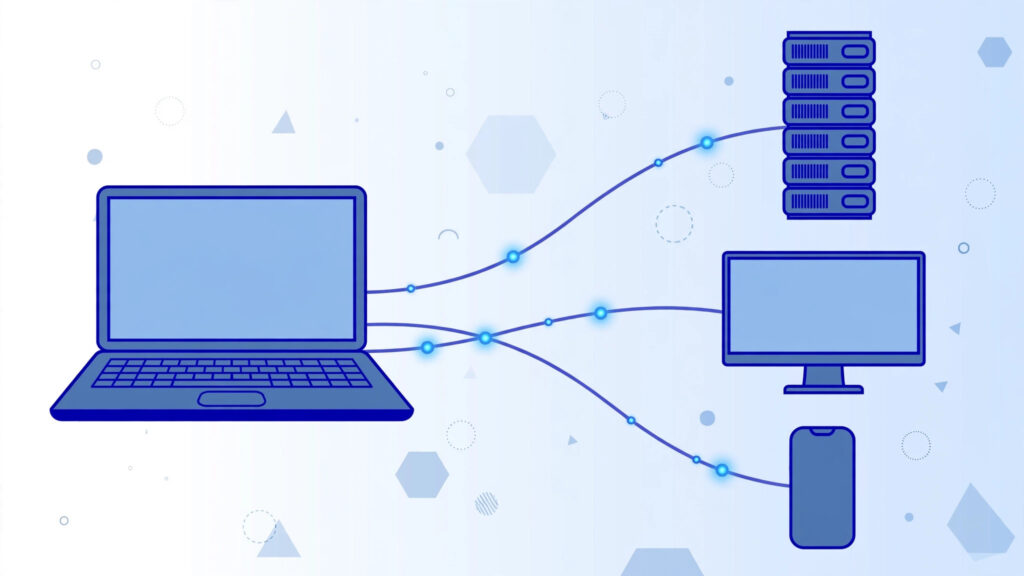
This RDP vs VNC vs TeamViewer guide starts with a simple truth: choosing a remote access tool usually comes down to three familiar names — RDP, VNC, and TeamViewer. All three let you control a computer from afar, but they work very differently under the hood — and picking the wrong one means laggy sessions, security headaches, or paying for features you do not need. Below, we compare them across the factors that actually matter, so you can choose with confidence.
Table of Contents
Quick Comparison Table
| Feature | RDP | VNC | TeamViewer |
|---|---|---|---|
| Developer | Microsoft | Open standard (many implementations) | TeamViewer GmbH |
| Cost | Built into Windows at no extra cost | Many free and open-source options | Free for personal use; paid license for commercial use |
| Platforms | Windows host; clients for Windows, macOS, mobile | Cross-platform (Windows, macOS, Linux) | Cross-platform (Windows, macOS, Linux, mobile) |
| Encryption | Strong (TLS-based) by default | Varies by implementation; some need manual setup | End-to-end encrypted by default |
| Performance | Excellent on Windows, efficient protocol | Generally slower, sends raw screen images | Good, optimized for varying connections |
| Setup difficulty | Moderate (firewall and user config) | Moderate (server install and config) | Very easy (no firewall changes needed) |
| Best for | Windows servers and remote work | Cross-platform and Linux servers | Helping non-technical users, quick support |
RDP (Remote Desktop Protocol)
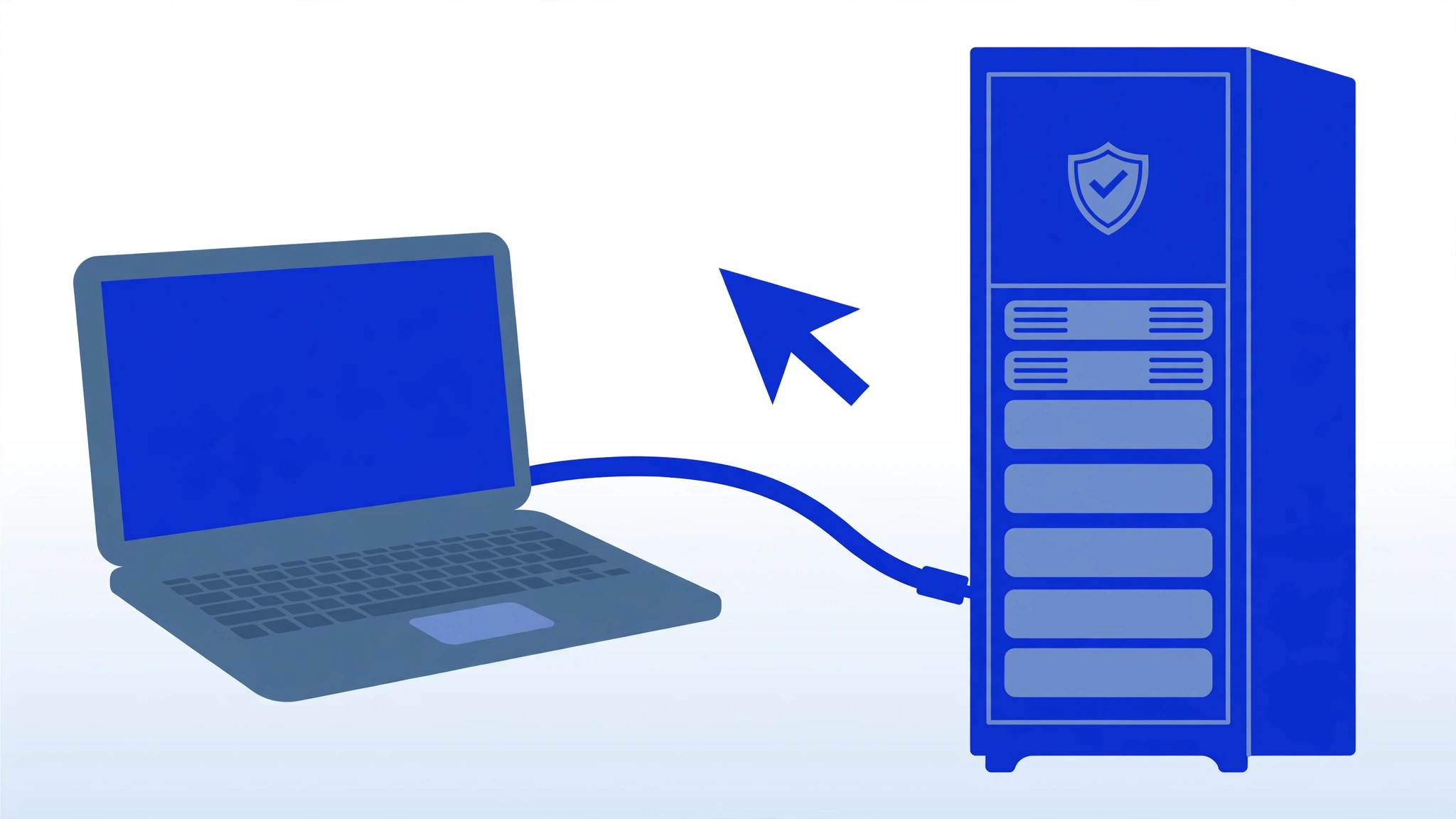
RDP is Microsoft‘s built-in remote desktop protocol, included with Windows Pro, Enterprise, and all Windows Server editions. If both your computer and the remote machine run Windows, RDP is hard to beat.
RDP Pros
- Free and built in. No downloads, no licenses, no subscriptions for the protocol itself — it is part of Windows.
- Excellent performance. RDP transmits drawing commands and compressed screen regions rather than raw images, so sessions feel fast even on average connections.
- Strong security defaults. Modern RDP uses TLS encryption and Network Level Authentication, which verifies credentials before a session even starts.
- Deep Windows integration. It respects Windows user accounts, group policies, and authentication, and supports multiple simultaneous sessions on Server editions.
- Session persistence. Disconnect and your programs keep running; reconnect later and everything is exactly where you left it.
RDP Cons
- Windows-centric. Only Windows Pro/Enterprise and Windows Server can act as hosts. Windows Home editions cannot host RDP sessions.
- Requires network configuration. You need the server’s IP address, valid credentials, and an open firewall path — it does not punch through firewalls automatically.
- Exposed ports attract attacks. An RDP port left open to the internet with a weak password is one of the most commonly exploited setups in the world.
Best for
Managing Windows servers and VPS machines, remote work on Windows, running Windows applications 24/7 (trading bots, automation tools), and any scenario where both ends run Windows and you control the network.
VNC (Virtual Network Computing)
VNC is not a single product but an open protocol with many implementations — TigerVNC, TightVNC, and RealVNC are among the best known. It works by essentially sending images of the remote screen to the viewer, which makes it simple and universal.
VNC Pros
- Truly cross-platform. VNC servers and viewers exist for Windows, macOS, and Linux, including lightweight Linux servers with no graphical desktop.
- Free and open options. Several mature implementations are free and open source, with no licensing costs at all.
- Simple concept. Because it works at the framebuffer level, it can share literally anything on the screen, including the login screen and BIOS-level views in some setups.
- Great for Linux. If you run Linux servers with a desktop environment, VNC is often the most straightforward graphical remote access option.
VNC Cons
- Slower performance. Sending screen images is less efficient than RDP’s drawing commands, so VNC can feel laggy over slow connections or with graphically busy screens.
- Inconsistent security. Encryption and authentication quality vary between implementations. Some older VNC setups transmit with weak or no encryption unless you tunnel them through SSH or a VPN.
- Less polished experience. Features like audio redirection, printer sharing, and clipboard handling vary in quality and may need manual configuration.
Best for
Cross-platform environments, Linux servers with graphical desktops, budget setups where free and open-source software is a priority, and situations where you need to see the actual physical screen of the machine.
TeamViewer
TeamViewer is a commercial remote access application known for one thing above all: it just works. Install it on both computers, share an ID and password, and you are connected — no port forwarding, no firewall rules, no network knowledge required.
TeamViewer Pros
- Easiest setup of the three. It works through firewalls and NAT automatically using TeamViewer’s relay servers. Non-technical users can be guided over the phone in minutes.
- Cross-platform and mobile-friendly. Works on Windows, macOS, Linux, Android, and iOS with a consistent interface.
- Strong encryption by default. Sessions are end-to-end encrypted without any configuration.
- Built for support scenarios. Features like file transfer, chat, session recording, and multi-monitor support are polished and ready out of the box.
TeamViewer Cons
- Commercial use requires a paid license. Personal use is free, but business use needs a subscription — check TeamViewer’s website for current pricing, as plans change over time.
- Dependent on a third party. Connections route through TeamViewer’s infrastructure, so you are trusting an external company and need their service to be online.
- Overkill for servers you own. For a VPS you fully control, the simplicity TeamViewer sells you is solving a problem you do not have — you already have network access to configure.
Best for
Helping family members or clients with computer problems, remote support businesses, quick ad-hoc connections where you cannot touch firewall settings, and teams that need a polished cross-platform tool without IT overhead.
Head-to-Head: The Deciding Factors
Security
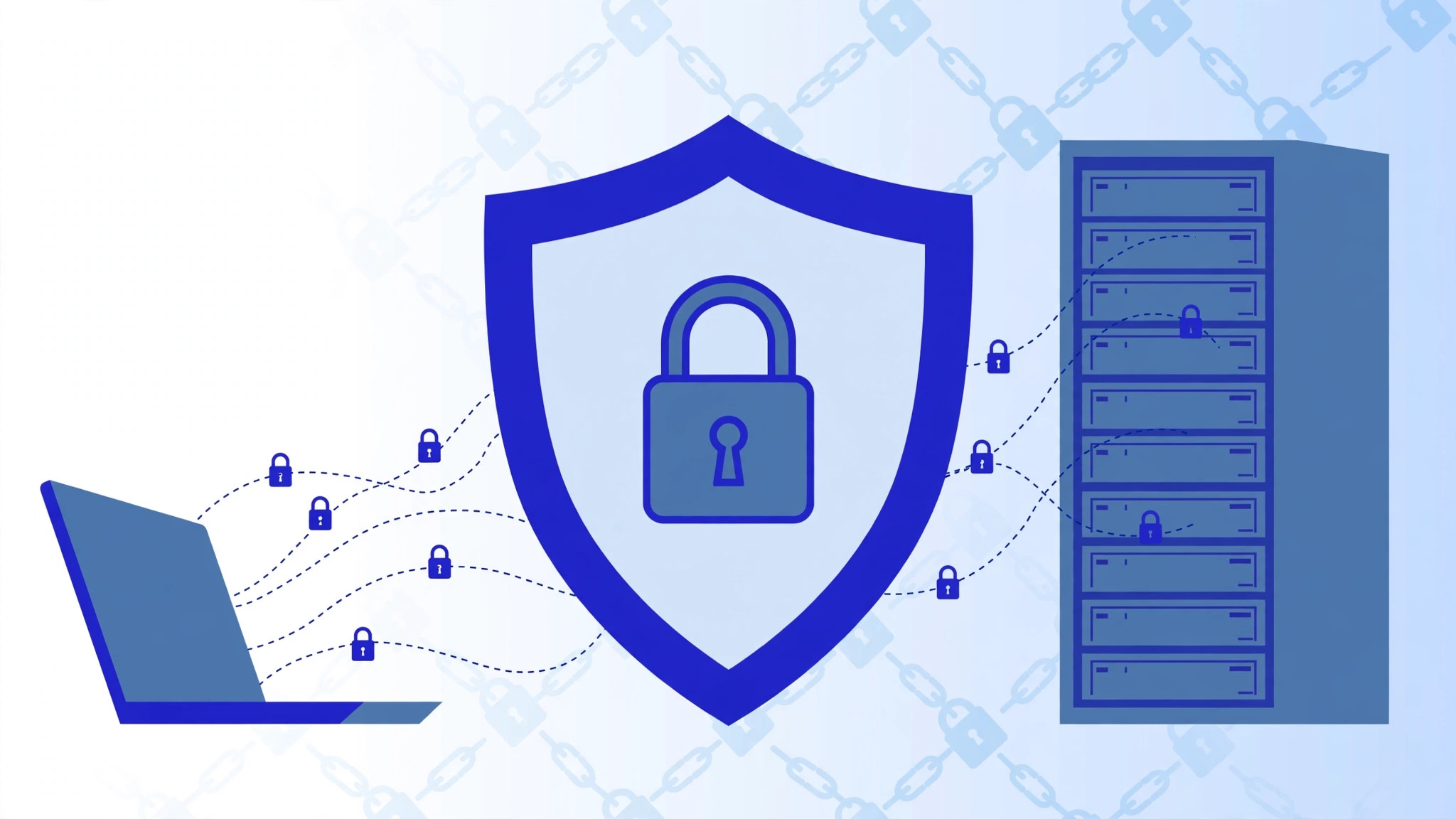
All three can be secure when configured properly, but the effort differs. RDP and TeamViewer encrypt by default; VNC’s security depends on the implementation and often needs an SSH tunnel or VPN to be safe. The biggest real-world risk is misconfiguration: an RDP port exposed to the internet with a weak password is far more dangerous than any protocol weakness. Whichever tool you choose, use strong unique passwords and keep the software updated.
Performance
RDP generally wins on Windows thanks to its efficient protocol. TeamViewer is well optimized and performs reliably across connection qualities. VNC typically trails both, especially over slow links — though on a fast local network the difference is barely noticeable.
Cost
RDP costs nothing beyond your Windows license. VNC has excellent free options with zero licensing. TeamViewer is free for personal use but requires a paid subscription for commercial use, which can be significant for businesses. If budget is the priority and you run Windows, RDP is the obvious pick; on Linux, VNC.
Ease of Use
TeamViewer is the clear winner — install, share an ID, connect. RDP and VNC both require you to know the server’s address, manage user accounts, and handle firewall rules. That extra setup buys you independence from third-party servers, which matters for always-on infrastructure.
Which Should You Choose?
Match the tool to your scenario:
- You manage a Windows VPS or server → Use RDP. It is built in, fast, free, and designed exactly for this.
- You run Linux servers and want a graphical desktop → Use VNC (tunneled through SSH for security).
- You need to help a non-technical person right now → Use TeamViewer. Nothing else connects this fast with zero configuration.
- You run a support business → TeamViewer (or a similar commercial tool) is worth paying for.
- You want maximum privacy and control → RDP or VNC over your own network or VPN, with no third-party relay involved.
Many professionals use more than one: RDP for their own Windows servers, VNC for Linux boxes, and TeamViewer kept installed for the inevitable “can you look at my computer?” call from a relative.
Conclusion: RDP vs VNC vs TeamViewer — The Right Tool for the Job
There is no single winner in the RDP vs VNC vs TeamViewer debate — only the right tool for the job. RDP is the best choice for Windows servers: fast, secure, and free with Windows. VNC is the flexible open option that shines on Linux and mixed environments. TeamViewer is the easiest path when simplicity matters more than control. Identify your scenario from the list above, follow the security basics for whichever tool you pick, and you will have reliable remote access without the guesswork.
Frequently Asked Questions
Can I use RDP and VNC on the same server?
Yes. They are independent services listening on different ports (3389 for RDP, 5900+ for VNC), so you can run both and choose per session. Just remember that every open remote-access port is something to secure.
Is TeamViewer really free?
TeamViewer is free for personal, non-commercial use. If you use it for business purposes, you need a paid license. TeamViewer actively detects suspected commercial use of the free version and may restrict it, so businesses should budget for a proper license.
Which is safest for accessing my server over the internet?
Any of the three can be safe with proper configuration, but the strongest common setup is RDP or VNC restricted to connections through a VPN, with strong passwords and updated software. Avoid exposing remote-access ports directly to the whole internet whenever possible.
Does VNC work on Windows Server?
Yes — several VNC implementations offer Windows servers. However, on Windows Server, RDP is almost always the better choice: it is already installed, better integrated, supports multiple concurrent sessions, and performs better.