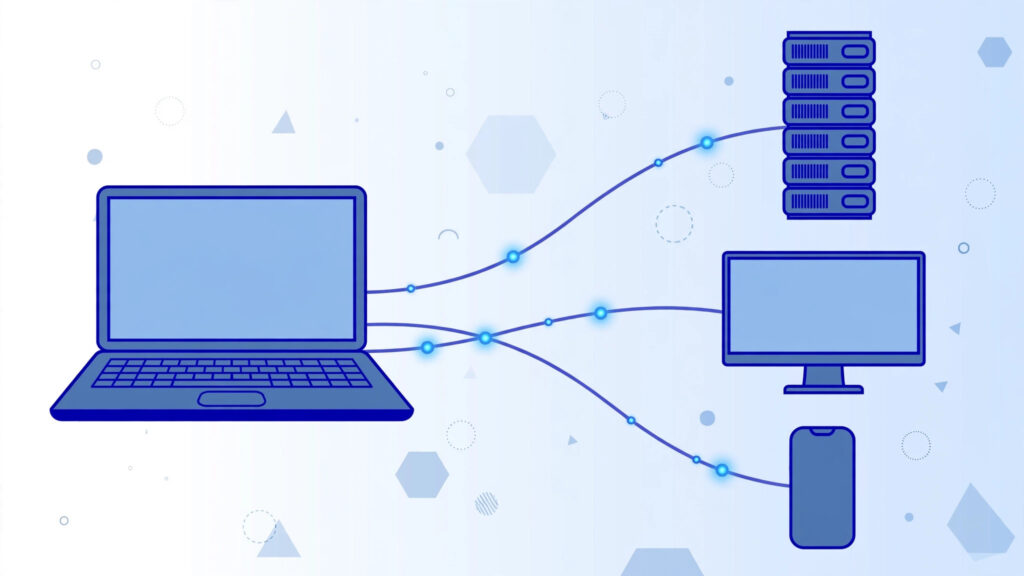
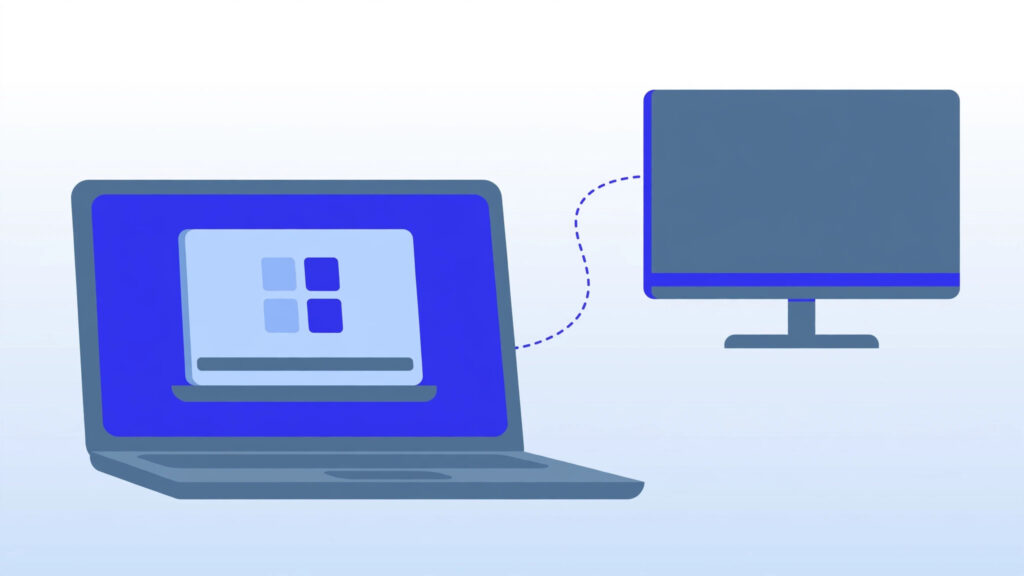
What is RDP? In the simplest terms, it is a technology that lets you see and control another computer from your own screen, as if you were sitting right in front of it. RDP stands for Remote Desktop Protocol, a system created by Microsoft that carries a computer’s display to your device and carries your keyboard and mouse input back.
Picture this: your office computer is sitting on your desk at work, but you are on your couch at home. With RDP, you open a window on your laptop, type in an address, sign in — and suddenly you are looking at your office computer’s desktop. You can open its files, run its programs, and do everything you could do if you were sitting in that office chair. That is the everyday magic of RDP.
In this beginner-friendly guide, you will learn what RDP is in plain language, how it works behind the scenes, what people actually use it for, how it compares to alternatives like VNC and TeamViewer, how to keep it secure, and how to set up your very first connection.
Table of Contents
What Is RDP? Explained in Plain Language
Let us break down the name first. RDP stands for Remote Desktop Protocol. A “protocol” is simply an agreed set of rules that two computers follow when they talk to each other — like a shared language. So RDP is Microsoft’s rulebook for letting one computer display its screen on another computer and accept input from it.
Every RDP setup has two sides:
- The host — the computer being controlled. It runs the Remote Desktop service, waits for incoming connections, and sends out pictures of its screen.
- The client — the device you connect from. It runs an RDP client app, shows you the remote screen, and sends your clicks and keystrokes back.
Windows has both sides built in: every modern Windows PC includes the Remote Desktop Connection app, and Windows 10/11 Pro and Windows Server editions can act as hosts. Microsoft also publishes free Remote Desktop apps for macOS, Android, and iOS, so you can reach a Windows computer from almost any device you own.
One thing that confuses beginners: in the hosting world, people often say “RDP” when they actually mean a remote Windows server — usually a VPS — that you log into with the protocol. Both meanings point to the same idea: a complete Windows desktop you can reach from anywhere with an internet connection.
How Does RDP Work? A Simple Step-by-Step
Think of RDP as a very clever video call between two computers — except instead of showing a face, one side shows its entire desktop. Here is what happens when you connect, in plain language:
- You open the RDP client and enter an address. On Windows this is the built-in Remote Desktop Connection app. You type the remote computer’s IP address or hostname — its “phone number” on the network.
- The two computers agree on security. Before anything else, they set up an encrypted connection and check your username and password. Modern Windows uses Network Level Authentication (NLA), which verifies who you are before the remote desktop even starts loading — this blocks a lot of automated attacks.
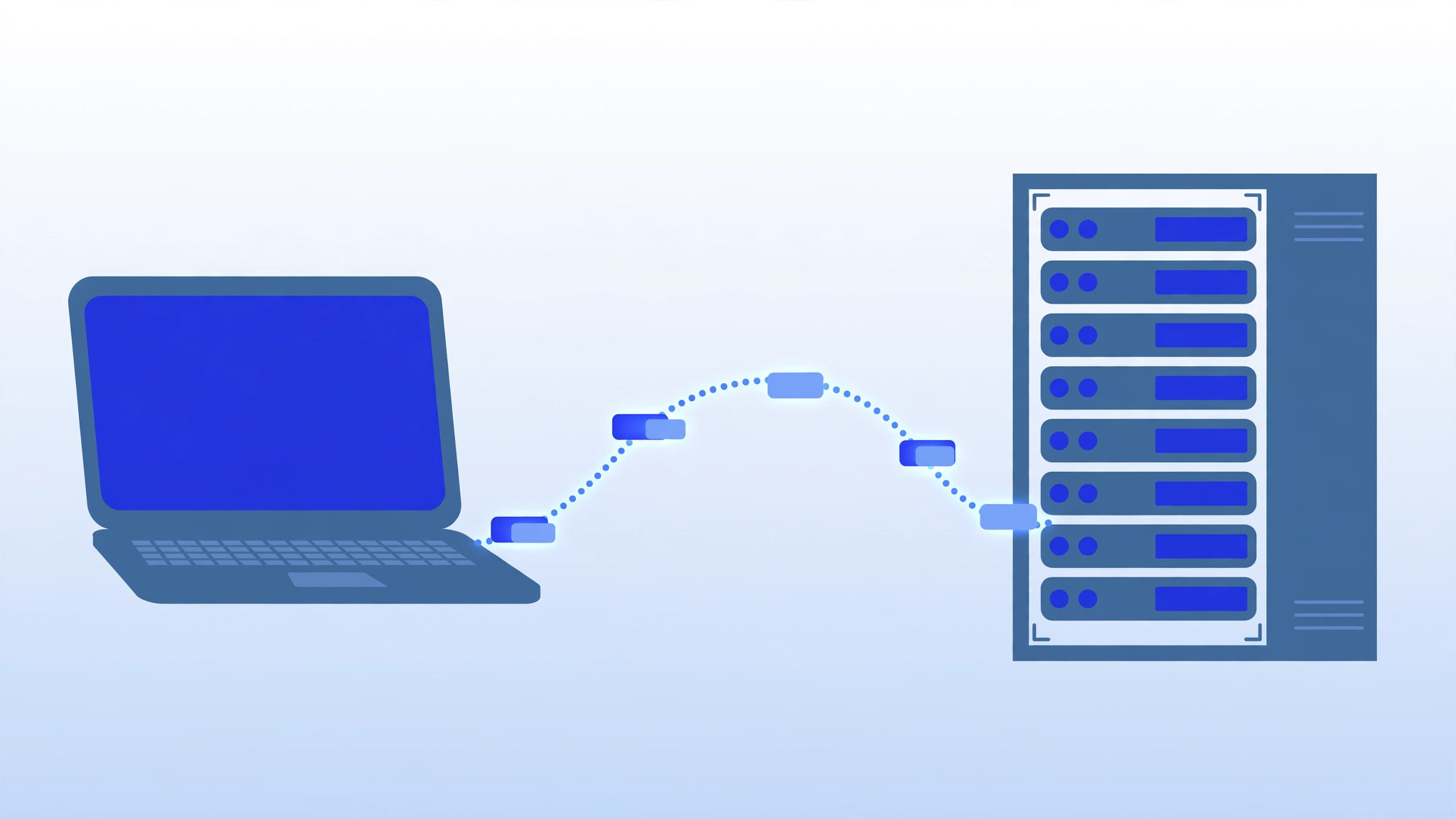
- The host starts sending screen updates. Here is the clever part: RDP does not stream raw video of the screen. It sends smart, compressed updates — drawing instructions, changed regions, cached images — so the remote desktop feels surprisingly smooth even on an average internet connection.
- Your input travels back. Every mouse movement and keystroke you make is sent to the remote computer, which treats it exactly as if it came from its own keyboard and mouse.
- When you disconnect, your work stays put. Your session can keep running on the host — programs keep working, downloads keep downloading — and everything is exactly where you left it when you reconnect later.
By default, RDP listens on TCP port 3389. You will see that number a lot in RDP guides and firewall settings, so it is worth remembering.
What Can You Do With RDP? Common Uses
RDP quietly powers far more of the internet than most people realize. Here are the most common ways people use it:
- Managing servers remotely. This is the biggest one in the hosting world. System administrators run Windows servers in data centers they may never visit in person — every update, install, and fix happens over RDP.
- Working from home. Employees connect to their office workstations to reach files and programs that only exist on the company network.
- Keeping programs running around the clock. Your home computer sleeps, reboots, and loses power — a remote server does not. People run trading software, automation bots, and long downloads on a remote Windows machine so the work continues 24/7.
- Using Windows-only software from other devices. If your daily laptop is a Mac or a Chromebook, RDP gives you a full Windows environment for that one application with no Mac or web version.
- Remote tech support. With permission, an IT person can connect to a computer and fix a problem directly instead of talking someone through twenty confusing steps over the phone.
- Learning safely. Students practice server administration on an inexpensive remote Windows machine, where a mistake costs nothing and cannot harm their own computer.
RDP vs VNC vs TeamViewer: A Quick Comparison
RDP is not the only way to reach a computer remotely. The two alternatives you will hear about most are VNC, an open, cross-platform protocol that works on almost any operating system but tends to feel slower and less polished on Windows, and tools like TeamViewer or AnyDesk, which are wonderfully easy — no firewall configuration needed — but charge for commercial use.
RDP’s sweet spot is Windows-to-Windows connections. It is already installed, it costs nothing extra, it is fast because it is deeply integrated with Windows, and it plugs straight into Windows user accounts and security. If you want the full, detailed breakdown, read our RDP vs VNC vs TeamViewer comparison.
Is RDP Secure? The Basics You Must Know
Here is the honest answer: the RDP protocol itself uses strong encryption, but its real-world safety depends almost entirely on how it is set up. RDP has a rough reputation for one reason — countless servers sit on the open internet with RDP exposed and weak passwords, and automated bots scan for open port 3389 around the clock, guessing username and password combinations by the thousands.
The good news: a handful of basic habits neutralizes nearly all of that risk:
- Use a strong, unique password. Long, random, and used nowhere else. A strong protocol cannot save a weak password.
- Keep Network Level Authentication (NLA) enabled. It is on by default in modern Windows and forces authentication before a session starts.
- Change the default port. Moving RDP off port 3389 will not stop a determined attacker, but it silences the vast majority of automated scanners.
- Limit who can reach it. Use your firewall — or better, a VPN — so only your own IP addresses can connect, instead of the entire internet.
- Install Windows updates promptly. Unpatched RDP flaws are a favorite entry point for ransomware; updates close them.
- Lock out repeated failures. Account lockout policies temporarily block whoever keeps guessing wrong passwords.
Want to go deeper? Read our full guide on whether RDP is safe, and if you run a server, our VPS security checklist covers the wider hardening picture.
How to Get Started With RDP
Getting your first RDP connection running is easier than most beginners expect. Here is what you need:
- A host computer running Windows 10/11 Pro or Enterprise, or any Windows Server edition. Important gotcha: Windows Home editions cannot act as RDP hosts — if your remote PC runs Home, you will need to upgrade it or use an alternative.
- The computer’s address — usually an IP address or hostname, plus the port if it has been changed from the default 3389.
- Login credentials — a username and password for an account on the remote machine that is allowed to connect remotely.
- Network access — your device must be able to reach the remote computer, and no firewall may block the connection.
Step 1 — Enable Remote Desktop on the host. On the remote Windows PC, open Settings, go to System, then Remote Desktop, and turn the toggle on. Note the PC name shown there — you will need it in a moment.
Step 2 — Connect from your device. On your own computer, open the Remote Desktop Connection app (just search “Remote Desktop” in the Start menu), type the host’s address, hit Connect, and sign in with your credentials. That is it — the remote desktop appears in a window, ready to use.
For the full walkthrough with screenshots-level detail, see our guides on enabling Remote Desktop on Windows 10 and 11 and using the Remote Desktop Connection app.
RDP Not Connecting? Quick Troubleshooting Pointers
Almost every RDP problem comes down to a short list of usual suspects. Run through these before anything else:
- Is the remote computer actually on? It sounds obvious, but a sleeping or powered-off PC is the number one cause of “can’t connect.”
- Is Remote Desktop still enabled on the host? Windows updates and setting changes occasionally flip it back off.
- Double-check the address and port. One wrong digit in the IP, or a changed port you forgot about, and the client knocks on the wrong door.
- Check firewalls on both ends. The host’s firewall must allow Remote Desktop traffic, and your local network must not block outbound connections.
- Verify your credentials. Make sure the username and password are correct and that the account is actually permitted to connect remotely.
- Session slow or laggy? Lower the remote session’s resolution and color depth, and turn off the desktop background and visual effects in the client’s Display settings — this cuts the data RDP has to send dramatically.
If none of that fixes it, our RDP connection problems guide walks through the deeper fixes step by step.
Frequently Asked Questions
Is RDP free to use?
The RDP client apps and the protocol support built into Windows cost nothing extra. What is not free is the Windows license on the host computer — and if you rent a Windows VPS, your hosting provider typically passes a Windows licensing fee on to you. The remote-access capability itself has no per-connection charge.
What port does RDP use?
RDP uses TCP port 3389 by default. You can change it in the Windows Registry, which many administrators do to reduce the noise from automated port scanners — it is a useful layer, not a complete defense on its own.
Can I use RDP from a Mac, phone, or tablet?
Yes. Microsoft publishes free Remote Desktop apps for macOS, iOS, and Android. Install the app, enter the server’s address and your credentials, and you get the full Windows desktop on that device.
Why is my RDP session slow or laggy?
The usual culprits are a slow or congested internet connection on either end, a server with too little CPU or RAM for what you are running, or unnecessarily high display settings. Lower the resolution and color depth, disable the desktop background in the client’s Display settings, and close bandwidth-hungry apps on the server.
Is it safe to leave RDP switched on all the time?
It is safe only if it is hardened: a strong unique password, NLA enabled, access restricted by firewall or VPN, and Windows kept updated. An RDP host with a weak password sitting directly on the open internet will be found and attacked — so either harden it properly or switch Remote Desktop off when you do not need it. Our RDP safety guide covers the full checklist.
Final Thoughts
So, what is RDP? It is Microsoft’s built-in technology for seeing and controlling a Windows computer from anywhere — fast, free with Windows, and genuinely simple once you have connected the first time. It powers remote work, server management, and round-the-clock automation for millions of people, and it stays safe with a few sensible habits: strong passwords, limited network exposure, and regular updates.
If you are just starting out, enable Remote Desktop on a test machine today and make your first connection — ten minutes of hands-on practice teaches more than any guide. And when you are ready to go further, the RDP guides linked above will take you from beginner to confident.
For the official technical reference, Microsoft’s Remote Desktop Protocol documentation is the authoritative source.