
If you have used Claude, ChatGPT or any AI coding assistant in the last few months, you have probably bumped into three letters that keep showing up everywhere: MCP. It stands for Model Context Protocol, and the server that speaks it — an MCP server — is quickly becoming the piece of plumbing that connects AI assistants to the real world. Searches for “what is mcp server in ai” jumped 140% in a single week at the start of November 2026, and the news has not slowed down since: Adobe announced a local MCP server for Creative Cloud at its MAX event on 10 November, Google quietly gave its Ads MCP server the power to change accounts on 2 November, and a German hoster disclosed on 7 November that attackers had exploited a flaw in its MCP server and reached 56 customer projects. So what is an MCP server, how does it actually work, and — the question that matters on this blog — how do you run one on your own VPS instead of trusting somebody else’s?
In this guide we will answer all three in plain English, then walk through the full setup: a small VPS, a real MCP server running behind HTTPS, and a connection from Claude — plus the security rules the Mittwald breach just made very expensive to ignore.
Contents
- What Is an MCP Server?
- How an MCP Server Works
- What Can an MCP Server Actually Do?
- Local vs Remote MCP Servers
- Why Run an MCP Server on a VPS?
- What You Need Before You Start
- Step 1: Prepare Your VPS
- Step 2: Install and Run Your First MCP Server
- Step 3: Expose It Safely Over HTTPS
- Step 4: Connect Claude and Your Other AI Clients
- MCP Security: The Lesson From the Mittwald Breach
- MCP in November 2026: What Is New Right Now
- Common Problems and Fixes
- Frequently Asked Questions
- The Bottom Line
What Is an MCP Server?
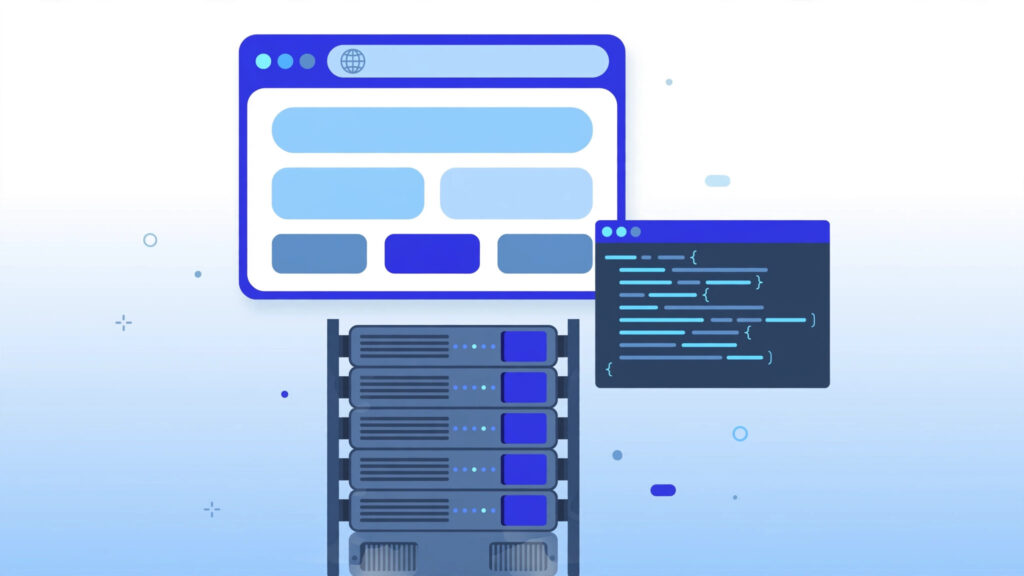
An MCP server is a small program that exposes tools, data and prompts to an AI assistant through a standard protocol — the Model Context Protocol, an open standard Anthropic published in November 2024. Think of it the way you would think of a USB port. Before USB, every device needed its own cable and its own driver; after USB, one standard connector worked for keyboards, printers, cameras and drives. MCP does the same thing for AI: instead of every AI app building a custom integration for every database, file system, calendar or API, they all speak one protocol, and any MCP server can plug into any MCP client.
The server itself does not contain any AI. It takes a request from an AI assistant — “list the files in this folder”, “run this database query” — executes it against whatever it is connected to, and returns the result. The intelligence stays in the model; the server just gives the model hands.
A useful way to picture it is the three-part setup the protocol defines. The host is the AI application you actually use — Claude Desktop, an IDE like Cursor, or ChatGPT. Inside the host sits an MCP client, which manages one connection per server. And the MCP server is the program on the other end, exposing its capabilities over that connection. One host can talk to many servers at once, which is how a single Claude session can read your files, query your database and check your calendar in the same conversation.
How an MCP Server Works
Under the hood, an MCP server is refreshingly boring, which is a compliment. The client and server exchange JSON-RPC 2.0 messages — the same lightweight remote-procedure-call format half the internet already uses. The client sends a request naming a tool and its arguments; the server runs it and sends back a result. There is a handshake first (the client asks the server what it can do, the server lists its capabilities), and then the conversation is just requests and responses.
There are two ways the two sides connect, and which one you pick matters a lot for a VPS setup:
| Transport | How it works | Best for |
|---|---|---|
| stdio | The client starts the server as a local process and talks to it over standard input/output | Your own laptop, local files, personal tools |
| Streamable HTTP | The server runs as a web service and the client connects over HTTPS | A VPS, a team, anything remote |
The older Server-Sent Events transport still shows up in old tutorials, but the current specification has replaced it with Streamable HTTP, so use that for anything new. The practical consequence is simple: a server on your laptop uses stdio, a server on your VPS uses HTTP, and the AI client does not care which one it is.
Once connected, a server offers three kinds of capability, called primitives. Tools are actions the model can call — run a query, write a file, send a message. Tools are the part you will use most, and also the part that needs the most care, because a tool can change things. Resources are read-only data the model can pull in — a file, a database row, a log. And prompts are reusable templates the server offers, like a saved instruction the user can invoke. A filesystem server, for example, exposes tools to read and write files, resources for individual files, and usually no prompts at all.
What Can an MCP Server Actually Do?
The honest answer is: almost anything you can express as a function call. The official Model Context Protocol project maintains a registry of reference servers, and the community has built thousands more. A few examples that show the range:
- Filesystem — read, write, search and move files inside a folder you choose. The classic first MCP server, and the one we will install below.
- SQLite / Postgres — run read-only queries against a database, inspect its schema, and let the model answer questions from live data instead of guessing.
- GitHub — open issues, read pull requests, search repositories, all from inside your AI assistant.
- Fetch / Brave Search — pull web pages and search results into the conversation, so the model works from current pages instead of its training data.
- Slack, Google Drive, Home Assistant — send messages, find documents, flip lights. Home Assistant’s official HA-MCP server, which joined the default Marketplace catalog in the 2026.11 release, exposes 87 tools.
The pattern to notice is that every one of these replaces copy-paste. Before MCP, getting a file into Claude meant opening it, copying it, and pasting it into the chat. With an MCP server, Claude asks the server for the file itself — and, with the right tools, writes the changed version back.
Local vs Remote MCP Servers
Most people meet MCP on their own machine first, and that is fine for personal use. But the moment more than one person — or more than one device — needs the same server, local stops working. That is the fork in the road, and it is where a VPS earns its keep.
| Local MCP server | Remote MCP server on a VPS | |
|---|---|---|
| Runs on | Your laptop or desktop | Your VPS, 24/7 |
| Available when | Your machine is on and the app is open | Always, from any device |
| Shared with a team | No — one machine, one user | Yes — one URL, many clients |
| Transport | stdio | Streamable HTTP over TLS |
| Needs authentication | No (same machine) | Yes — mandatory, never skip it |
| Good for | Personal files, local dev tools | Team tools, shared data, automation |
There is also a security argument that cuts the other way, and it is worth stating plainly. A local server can only be reached by someone sitting at your machine. A remote server can be reached by anyone who finds its URL. That is why the setup below spends as much time on authentication and a reverse proxy as it does on the server itself — a remote MCP server without auth is not a tool, it is an open door.
Why Run an MCP Server on a VPS?
If you already rent a VPS for your websites or your AI models, an MCP server is one of the cheapest useful things you can add to it. Four reasons come up again and again:
It is always on. Your laptop sleeps, reboots and leaves the house. A VPS does not. An MCP server that your n8n automations or your team’s Claude sessions depend on needs to answer at 3 AM, and a $6-a-month VPS does that without thinking about it.
One server, every device. Set the server up once on the VPS, and your laptop, your desktop, your phone’s AI app and your colleague’s machine all connect to the same URL. No per-device configuration drift, no “it works on my machine” for AI tooling.
Your data stays yours. Hosted MCP connectors — the kind Adobe runs for Creative Cloud, or the ones built into ChatGPT — run on somebody else’s infrastructure, and your files pass through it. A server on your own VPS keeps the data path between you and a machine you control. That matters more, not less, as MCP servers gain write tools: Google’s Ads MCP server gained the ability to create assets and upload videos in its 0.0.6 release on 2 November, and write access is exactly the kind of power you want on your own box.
It is cheap to run. Most MCP servers are tiny Node.js or Python processes that idle at a few dozen megabytes of RAM. You do not need a GPU or a big machine, and you can run several servers side by side on the same small VPS that already hosts your site.
What You Need Before You Start
The shopping list is short. If you already have a VPS from following our new VPS setup checklist, you probably have everything already.
| Requirement | Minimum | Comfortable |
|---|---|---|
| vCPU | 1 | 2 |
| RAM | 1 GB | 2 GB |
| Disk | 10 GB SSD | 25 GB SSD |
| Operating system | Ubuntu 24.04 LTS | |
| Software | Node.js 20 or newer, Nginx, a domain name with DNS pointed at the VPS | |
| Monthly cost | Roughly $5–6 on a budget provider | |
You need a domain name — or at least a subdomain like mcp.yourdomain.com — because remote MCP clients connect over HTTPS, and HTTPS needs a certificate, and a certificate needs a name. A free certificate from Let’s Encrypt covers it.
Step 1: Prepare Your VPS
Connect to your VPS over SSH as root (or as a sudo user) and bring the system up to date. Then install Node.js 22, which is what the current reference MCP servers target, and Nginx, which will sit in front of the MCP server as a reverse proxy.
sudo apt update && sudo apt upgrade -y
curl -fsSL https://deb.nodesource.com/setup_22.x | sudo -E bash -
sudo apt install -y nodejs nginx
node --version   # should print v22.x
npm --version
Check that the firewall allows SSH and HTTPS, and nothing else you do not need. On Ubuntu, UFW makes this a one-liner each:
sudo ufw allow OpenSSH
sudo ufw allow 'Nginx Full'
sudo ufw enable
sudo ufw status
One more thing before moving on: create a dedicated, unprivileged user for the MCP server, and a folder it is allowed to touch. The filesystem server we are about to install can read and write wherever you point it, so point it at a folder that contains only the files you actually want the AI to reach — never at your home directory, and never at /. This is the single most important security decision in the whole guide.
sudo useradd -m -s /bin/bash mcp
sudo mkdir -p /srv/mcp-data
sudo chown mcp:mcp /srv/mcp-data
Step 2: Install and Run Your First MCP Server
First, confirm the server runs. The reference servers are published on npm, so you can try one without installing anything, using npx:
sudo -u mcp npx -y @modelcontextprotocol/server-filesystem /srv/mcp-dataThat command starts the server on stdio, which is fine for a smoke test — it will sit there waiting for input, which is normal — but a remote server needs HTTP, and it needs to survive reboots. So stop it with Ctrl+C and set it up properly with a small wrapper and systemd.
Create the wrapper script. It starts the filesystem server in HTTP mode on localhost port 3000, restricted to the data folder:
sudo -u mcp tee /home/mcp/run-filesystem.sh > /dev/null <<'EOF'
#!/bin/bash
exec npx -y @modelcontextprotocol/server-filesystem \
  --transport http --port 3000 /srv/mcp-data
EOF
sudo chmod +x /home/mcp/run-filesystem.sh
Then a systemd service so the server starts at boot and restarts if it crashes:
sudo tee /etc/systemd/system/mcp-filesystem.service > /dev/null <<'EOF'
[Unit]
Description=MCP filesystem server
After=network.target

[Service]
User=mcp
WorkingDirectory=/home/mcp
ExecStart=/home/mcp/run-filesystem.sh
Restart=always
RestartSec=5

[Install]
WantedBy=multi-user.target
EOF
sudo systemctl daemon-reload
sudo systemctl enable --now mcp-filesystem
sudo systemctl status mcp-filesystem --no-pager
If the status shows active (running), your MCP server is alive. Check it answers on localhost before exposing it to the world:
curl -s http://127.0.0.1:3000/mcp | head -c 200; echoYou should get a response from the server (an error about a missing session is fine — it proves the server is listening). If curl cannot connect, check the service logs with journalctl -u mcp-filesystem -n 50 before going any further.
Step 3: Expose It Safely Over HTTPS
Never point an AI client directly at port 3000. The MCP server itself has no TLS and no login screen, so Nginx will provide both: encryption, and the front door where authentication happens.
First, get a certificate. Replace mcp.yourdomain.com with your real subdomain, and make sure its DNS already points at the VPS:
sudo apt install -y certbot python3-certbot-nginx
sudo certbot --nginx -d mcp.yourdomain.com
Then the Nginx site. This proxies /mcp to the server on port 3000 and — this is the part people skip — demands HTTP basic authentication before any request reaches it:
sudo tee /etc/nginx/sites-available/mcp > /dev/null <<'EOF'
server {
    listen 443 ssl;
    server_name mcp.yourdomain.com;

    ssl_certificate /etc/letsencrypt/live/mcp.yourdomain.com/fullchain.pem;
    ssl_certificate_key /etc/letsencrypt/live/mcp.yourdomain.com/privkey.pem;

    auth_basic "MCP server";
    auth_basic_user_file /etc/nginx/.mcp-htpasswd;

    location /mcp {
        proxy_pass http://127.0.0.1:3000/mcp;
        proxy_http_version 1.1;
        proxy_set_header Host $host;
        proxy_set_header X-Forwarded-Proto https;
        proxy_read_timeout 300s;
    }
}
EOF
sudo apt install -y apache2-utils
sudo htpasswd -c /etc/nginx/.mcp-htpasswd mcpuser
sudo ln -s /etc/nginx/sites-available/mcp /etc/nginx/sites-enabled/
sudo nginx -t && sudo systemctl reload nginx
Pick a long random password for mcpuser — this is the only thing standing between the internet and a server that can write files. Test it from your own machine:
curl -s -o /dev/null -w "%{http_code}\n" https://mcp.yourdomain.com/mcp
# 401 = auth is working, the door is locked
curl -s -u mcpuser:YOURPASSWORD -o /dev/null -w "%{http_code}\n" https://mcp.yourdomain.com/mcp
# 200/400 with credentials = the server answers behind the lock
Basic auth is the simplest option and it is good enough for a personal server, but know its limits: one shared password, no per-user scoping, no per-client revocation. If you later share the server with a team, move to the protocol’s proper authentication — OAuth 2.1, which the current MCP specification defines for remote servers — before the server becomes load-bearing for other people, not after.
Step 4: Connect Claude and Your Other AI Clients
With the server answering behind HTTPS and auth, connecting a client is configuration, not engineering. In Claude Desktop, open Settings, go to Developer, and edit claude_desktop_config.json to add your server:
{
  "mcpServers": {
    "vps-files": {
      "url": "https://mcpuser:YOURPASSWORD@mcp.yourdomain.com/mcp",
      "transport": "http"
    }
  }
}
Restart Claude Desktop. The hammer icon in the chat box should now list the filesystem tools — read_text_file, write_file, list_directory and the rest. Ask it to list the files in your data folder, and watch it call the server on your VPS to do it. ChatGPT, Cursor and other MCP clients use the same idea with slightly different config files: a server name, a URL, and credentials.
Two habits will save you grief later. First, keep the number of connected servers small: every server adds tools to the model’s context, and a model with forty tools picks the wrong one more often than a model with five. Second, test each new server with a read-only request first — list a directory, read a file — before you let it anywhere near a write tool. If the connection is wrong, you want to find out from a failed read, not from a file that went to the wrong place.
MCP Security: The Lesson From the Mittwald Breach
On 7 November 2026, the German hosting provider Mittwald disclosed a security incident at its MCP server: an attacker registered an account on 27 October, exploited a flaw in the server within five minutes, and was not blocked until 4 November — more than a week later. Forensic review found 56 customer projects compromised. Mittwald’s own FAQ says the MCP server was the interface through which customers connected their AI assistants to their hosting accounts — exactly the kind of powerful, trusted connection an attacker wants.

Three lessons from that incident apply directly to a server on your own VPS:
Authentication is not optional. The Mittwald server was reachable by anyone who registered an account. Your server should accept no unauthenticated request at all — which is why Step 3 puts auth in Nginx, in front of the MCP server, rather than trusting the application layer to do it.
Least privilege, enforced by the filesystem. Our server runs as the mcp user and can only touch /srv/mcp-data. Even if a tool call goes wrong — or a malicious prompt tricks the model into asking for something it should not — the operating system itself limits the damage to one folder owned by one unprivileged user. A server running as root with access to the whole disk is not a shortcut, it is the breach.
Watch for prompt injection through tools. MCP tools are described in plain text, and the model reads those descriptions to decide what a tool does. A compromised or malicious server can describe a harmless-looking tool that actually exfiltrates data — the research community calls this tool poisoning, and it is the MCP-specific attack that traditional web security does not prepare you for. Only connect servers you trust, from sources you can verify, and treat a new server’s tool list the way you would treat a new app’s permission screen: read it before you accept it.
Keep the server updated, too. The reference servers ship fixes through npm, so a monthly npm update (or a rebuild of your Docker image) is the equivalent of patching — and if you have not read our VPS hardening guide yet, the firewall, fail2ban and key-only SSH sections there apply to this server exactly as much as to anything else on the box.
MCP in November 2026: What Is New Right Now
MCP is moving fast enough that a guide written in October would already be missing pieces. The developments from the last two weeks are worth knowing, because they show where the standard is heading — and because two of them are warnings.
- Adobe’s local MCP server (10 November): announced at Adobe MAX in Miami, a local server that lets ChatGPT, Claude and Gemini drive Photoshop, Illustrator, After Effects and Premiere directly. Adobe already runs a hosted connector with 109 tools; the local server is newer and narrower, and Adobe’s own VP told TechCrunch the company is “still figuring out where and when and how to draw the line”. Expect the tool surface to change.
- Google Ads MCP gains write tools (2 November): version 0.0.6 of Google’s open-source Ads MCP server added four tools that create assets, upload videos to YouTube and manage labels — the first write tools in the project’s history, and they are switched on by default. If you approved that server when it was read-only, your approval no longer describes what it can do.
- Home Assistant’s HA-MCP (2026.11): the official server joined Home Assistant’s default Marketplace catalog, exposing 87 tools for automations, dashboards and backups. For self-hosters this is the most interesting one: it is a real, maintained server for a system many VPS owners already run.
- Platformr’s remote MCP server (3 November): a hosted server that connects AI assistants to AWS environments in plain English — the enterprise end of the same pattern, and a reminder that “remote MCP server” is becoming a product category, not just a hobbyist setup.
- The Mittwald breach (disclosed 7 November): the warning. Fifty-six projects, eight days to detection, through the MCP server. Self-hosting does not make you immune, but it does mean you control the auth, the user, the folder and the logs — the four things that decide how bad an incident gets.
Common Problems and Fixes
Most MCP failures look mysterious and have boring causes. Here are the ones you will actually hit, in the order to check them: the systemd service first, then curl on localhost, then curl through Nginx, then the client config.
| Symptom | Most likely cause | Fix |
|---|---|---|
| Claude shows no tools after restart | Config file JSON has a typo, or the app did not restart | Validate the JSON, fully quit and relaunch the app |
| 401 from the server URL | Basic-auth password wrong, or credentials not in the URL | Re-check the htpasswd entry; test with curl first |
| Connection refused on port 3000 | systemd service not running | systemctl status mcp-filesystem, then journalctl -u mcp-filesystem -n 50 |
| Server answers locally but not remotely | Nginx proxy or firewall rule missing | nginx -t, check UFW allows HTTPS, check DNS points at the VPS |
| Tools appear but calls time out | Proxy read timeout too short for long operations | Raise proxy_read_timeout in the Nginx site |
| Model picks the wrong tool | Too many servers connected at once | Disconnect servers you are not using for this task |
Nine times out of ten the break is in the first two steps, and you will save yourself an hour by testing the server directly before blaming the AI app.
Frequently Asked Questions
Is an MCP server the same thing as an API?
Not quite. An API is a fixed set of endpoints built for one service; an MCP server is a standard way for an AI model to discover and call tools on any service. The difference that matters is discovery: the model asks the server what it can do and reads the tool descriptions, instead of a developer hard-coding each endpoint in advance.
Do I need a VPS, or can I just run an MCP server on my laptop?
For personal use, your laptop is fine — that is what stdio transport is for. You need the VPS when the server has to be always on, shared with other people or devices, or reachable by automations that run while your laptop is closed. That is also the point where authentication stops being optional.
How much does it cost to run an MCP server on a VPS?
Almost nothing beyond the VPS itself. The reference servers idle at tens of megabytes of RAM and negligible CPU, so a $5–6 budget VPS handles several servers at once. The real costs are the domain name (roughly $10 a year) and your time setting up the reverse proxy properly.
Can an MCP server access anything on my VPS?
Only what you point it at. The filesystem server sees exactly the folder you pass on its command line, and the systemd service runs as an unprivileged user. That boundary is the whole security model, so choose the folder deliberately and never pass your home directory or the filesystem root.
Is MCP safe to use with sensitive data?
It is as safe as the servers you connect and the tools you enable. A read-only server pointed at a single folder is low risk. A server with write tools, broad filesystem access and no authentication is a breach waiting for a date — the Mittwald incident in November 2026 is the current example. Use auth, least privilege, trusted servers, and read every new tool list before you accept it.
The Bottom Line
An MCP server is a small, boring program that does one important job: it gives an AI assistant safe, standard access to your tools and your data. The protocol is simple — JSON-RPC over stdio locally or Streamable HTTP remotely — the servers are cheap to run, and a $6 VPS with Nginx in front of it is enough to host one properly. The setup in this guide takes under an hour: prepare the box, run the filesystem server as an unprivileged user, put it behind HTTPS with authentication, and connect your client.
The part that decides whether the setup is good or a liability is not the installation, it is the discipline around it. Authenticate every request. Give the server one folder, not the filesystem. Connect only servers you trust, read their tool lists, and keep them updated. November 2026 gave us both sides of that story in the same week — Adobe and Google shipping MCP deeper into their products, and Mittwald learning what an unguarded MCP server costs.