
Why Self-Host AI Models on a VPS?
Running AI models on your own server — instead of paying OpenAI, Anthropic, or Google per token — is one of the smartest moves you can make in 2026. When you run ai models on a vps, you get predictable costs, complete privacy, zero rate limits, and the freedom to fine-tune models for your exact needs.
The open-source models available today (Llama, Mistral, Qwen, DeepSeek) are shockingly capable — good enough for chatbots, summarization, coding help, data extraction, and RAG systems. And they run beautifully on a rented VPS that costs less than a dinner out. This guide covers everything: hardware requirements, the best tools, step-by-step setup, and real costs.
If you are new to servers, read our VPS hosting beginner guide first. If you specifically want AI video or image generation, see our GPU VPS vs regular VPS comparison — this guide focuses on language models, which have very different requirements.
Table of Contents
What You Need: Hardware Requirements
Language models live in RAM (or VRAM). The rule of thumb: you need roughly 1 GB of memory per 1 billion parameters for a quantized model. Here is what that means in practice:
- Small models (3B–8B params): 4–8 GB RAM — runs on a $6–$12/month CPU VPS. Great for chatbots, classification, and simple RAG.
- Medium models (13B–14B params): 10–16 GB RAM — a $20–$40/month VPS. Noticeably smarter, handles longer documents.
- Large models (32B–70B params): 24–64 GB RAM — needs a big VPS ($60–$150/month) or a GPU server with 24–48 GB VRAM.
CPU choice matters less than RAM for inference — any modern CPU works. What matters is memory bandwidth and quantity. For most people, an 8B model on a mid-range VPS is the sweet spot: fast enough, smart enough, cheap enough.
Need help picking server specs? Our guide to getting the cheapest VPS without sacrificing performance walks through the shopping process.
Model Formats Explained: GGUF, GPTQ, AWQ
You will see these acronyms everywhere — here is what they mean:
- GGUF: the standard format for running models on CPU (and some GPUs). Created by the llama.cpp project. If you are on a regular VPS, GGUF is your format.
- GPTQ / AWQ: GPU-optimized quantization formats. Smaller and faster on NVIDIA GPUs, but useless without one.
- Quantization (Q4, Q5, Q8): how aggressively the model’s weights are compressed. Q4_K_M is the sweet spot — ~4x smaller than full precision with barely noticeable quality loss.
Bottom line: CPU VPS → GGUF models. GPU VPS → AWQ/GPTQ models. Download models from Hugging Face — every popular model has quantized versions uploaded by the community.
Option 1: Ollama — The Easiest Way to Start
Ollama is the simplest path to running models on a VPS. One install command, one command to download a model, one command to chat — and it exposes an OpenAI-compatible API for your apps.
Install on Ubuntu:
curl -fsSL https://ollama.com/install.sh | sh
# verify it is running:
ollama --version
Download and run your first model (Llama 3.1 8B, a great all-rounder):
ollama pull llama3.1:8b
ollama run llama3.1:8b
# type your prompt, Ctrl+D to exit
That is it — you are running a capable AI on your own server. Ollama automatically picks the right quantization, uses GPU if one exists, and falls back to CPU otherwise. For programmatic access, it serves an API on localhost:11434:
curl http://localhost:11434/api/generate -d '{
  "model": "llama3.1:8b",
  "prompt": "Summarize the benefits of self-hosting AI in one sentence.",
  "stream": false
}'
Ollama is perfect for: personal chatbots, API backends for your apps, and experimentation. When you outgrow it, the next options give you more control.
Option 2: llama.cpp — Maximum Control on CPU
llama.cpp is the engine underneath most CPU inference. Using it directly gives you fine-grained control over threading, memory mapping, and performance tuning:
git clone https://github.com/ggerganov/llama.cpp
cd llama.cpp && make -j
# download a GGUF model, then chat:
./llama-cli -m models/llama-3.1-8b-q4_k_m.gguf -p "Explain VPS hosting simply"
Key flags worth knowing: -t (thread count — match your vCPU count), -c (context size), and --mlock (lock the model in RAM so it never swaps to disk). llama.cpp also ships llama-server, an OpenAI-compatible HTTP server — the same API shape as Ollama, but with more tuning knobs.
Choose llama.cpp when you need maximum performance on limited hardware or want to understand exactly what is happening under the hood.
Option 3: vLLM and Text Generation WebUI — For GPU Servers
If your VPS has a GPU, you can serve models far faster with GPU-optimized software:
- vLLM: the production standard for serving LLMs on GPUs. Blazing fast, OpenAI-compatible API, handles many simultaneous users. Install via pip, point it at a Hugging Face model, done.
- Text Generation WebUI (oobabooga): the friendliest option — a full web chat interface with model switching, character cards, and extensions. Great for personal use and demos.
On a 24 GB VRAM GPU (RTX 3090/4090), vLLM can serve a 70B AWQ model to multiple users at once — something no CPU server can touch. For the hardware side, revisit our GPU VPS guide.
Exposing an OpenAI-Compatible API
The killer feature of Ollama, llama.cpp server, and vLLM: they all speak the OpenAI API format. That means any app, n8n workflow, or script written for OpenAI works with your self-hosted model by changing one URL:
# Before: https://api.openai.com/v1
# After:  http://your-vps-ip:11434/v1
# Everything else — code, libraries, prompts — stays identical.
This is how you plug self-hosted AI into real projects: point your n8n automation server at your VPS model endpoint, and your workflows run on free, private AI instead of paid APIs.
Choosing the Right Model for Your VPS
Not all models are equal — and bigger is not always better for your use case. Here are the proven picks in 2026:
- Llama 3.1 8B (Meta): the default choice. Excellent all-rounder for chat, summarization, and RAG on a modest VPS.
- Qwen 2.5 7B/14B (Alibaba): outstanding multilingual performance and strong coding ability — a favorite for non-English workloads.
- Mistral 7B / Mixtral 8x7B: fast, efficient, great instruction-following. Mixtral needs more RAM but punches far above its size.
- DeepSeek-R1 Distill models: reasoning-focused models that “think out loud” — superb for math, logic, and complex analysis.
- Phi-4 (Microsoft): tiny (14B) but remarkably capable — ideal when RAM is tight.
Start with Llama 3.1 8B. Only move up when you can point to a specific task where it falls short — most people never need to.
Quantization: The Setting That Decides Everything
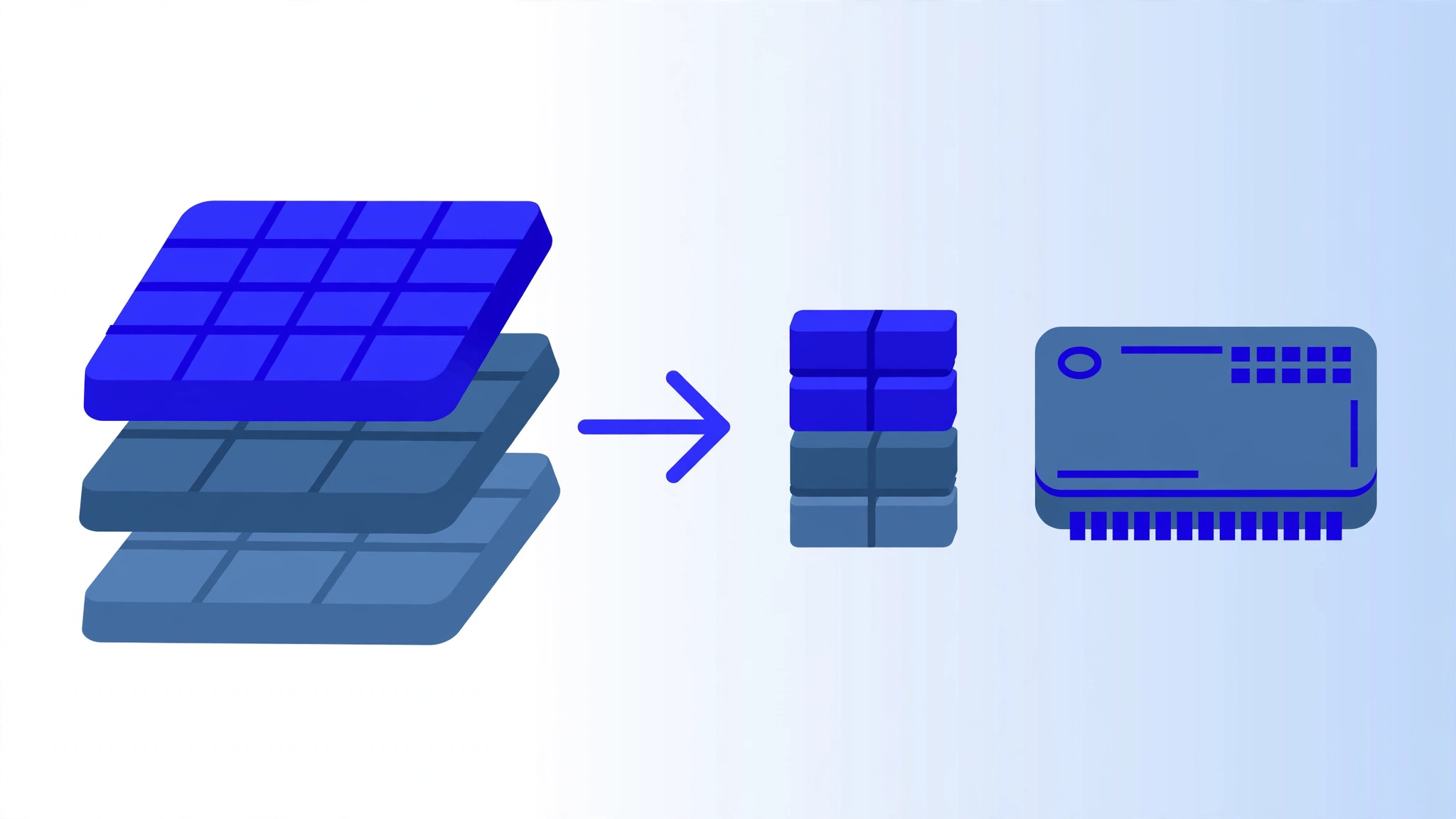
Quantization shrinks a model by storing its weights in fewer bits. The practical impact:
- Q8_0: near-identical to full precision, but barely smaller — rarely worth it.
- Q5_K_M / Q4_K_M: the sweet spot. ~4–5x smaller, quality loss is negligible for most tasks. Default to Q4_K_M.
- Q3 / Q2: dramatically smaller, noticeably dumber. Only for very weak hardware or experimentation.
A Llama 3.1 8B at Q4_K_M needs about 5 GB of RAM — it fits comfortably on an 8 GB VPS with room for the OS. The same model at full 16-bit precision needs 16+ GB. Quantization is what makes self-hosting affordable.
Performance Tuning: Getting More Speed
- Match threads to vCPUs: set thread count equal to your core count — more threads than cores slows things down.
- Lock memory: use
--mlock(llama.cpp) so the model stays in RAM and never swaps to disk — swapping kills speed. - Right-size the context: a 128K context window sounds nice but eats RAM and slows every token. Use 4K–8K unless you truly need long documents.
- Keep the model loaded: loading a model takes 10–60 seconds. Configure your server to keep it in memory between requests.
- Use flash attention on supported builds — a free 10–20% speedup on long prompts.
Realistic CPU speeds: an 8B Q4 model on 4 vCPUs generates ~10–20 tokens/second — fine for chat and automation. Batch jobs (summarizing 100 documents overnight) do not care about per-token speed at all.
Securing Your AI Server
Your model endpoint is valuable — an exposed one gets abused for spam and costs you CPU. Lock it down:
- Never expose the API port publicly without authentication. Bind to
127.0.0.1and access via SSH tunnel, or put it behind an authenticated reverse proxy. - Use API keys: vLLM and most servers support
--api-key— require it on every request. - Firewall everything: only SSH (key-only) and HTTPS open, as in our VPS security guide.
- Rate-limit: a simple Nginx rate limit prevents one bad client from melting your CPU.
- Keep prompts private: logs can contain user input — rotate and restrict log access.
Costs: Self-Hosting vs Pay-Per-Token APIs
| Approach | Monthly cost | Best for |
|---|---|---|
| 8B model on $12 VPS | $12 flat | Steady daily use, chatbots, automation |
| 70B model on GPU VPS | $150–$300 flat | High-quality needs, teams |
| OpenAI API (GPT-4o-mini) | $0.15–$0.60 per 1M tokens | Bursty, unpredictable usage |
| OpenAI API (GPT-4o) | $2.50–$10 per 1M tokens | Maximum quality, low volume |
The breakeven math: if you process more than ~20–50M tokens/month through a mid-tier API, a $12 VPS running an 8B model is cheaper — and the VPS cost never grows with usage. Heavy, predictable workloads are where self-hosting wins by 10x or more.
What to Build: Practical Use Cases
- Private chatbot: a support bot trained on your docs via RAG — no data ever leaves your server.
- Document pipeline: nightly jobs that summarize, classify, and extract data from incoming files.
- Code assistant: a local alternative to Copilot for your team, with your codebase as context.
- Content engine: draft blog posts, product descriptions, and social copy on demand.
- Automation brain: plug the model endpoint into your n8n automation server — AI decisions inside every workflow, at zero per-token cost.
- Research agent: combine the model with web search for a private deep-research assistant.
Troubleshooting Common Problems
Model loads but responses are gibberish
Wrong quantization or a corrupted download. Re-download the GGUF and verify its checksum; stick to Q4_K_M from reputable uploaders.
Out-of-memory crashes on load
The model does not fit. Drop to a smaller model or heavier quantization (Q4 → Q3), reduce context size, or add RAM/swap as a stopgap.
Slow generation (under 5 tokens/sec)
Check thread count matches vCPUs, ensure the model is mlocked (not swapping), and close other heavy processes. On shared VPS plans, noisy neighbors can also throttle you — a dedicated-CPU plan fixes it.
API returns 404/connection refused
The server binds to localhost by default — from another machine, use an SSH tunnel or reverse proxy. Also confirm the port is actually listening: ss -tlnp | grep 11434.
Frequently Asked Questions
Can I run AI models on a $6 VPS?
Yes — small models (3B–8B, Q4 quantized) run fine on 2 vCPU / 4 GB RAM. Expect ~8–15 tokens/second: perfectly usable for chatbots and automation.
Do I need a GPU to run AI models?
No. GPUs are faster, but modern quantized models run well on CPU. Only consider a GPU when you need high throughput or 70B+ models.
Is self-hosting legal for commercial use?
Check each model’s license. Llama, Mistral, and Qwen community versions generally allow commercial use; some (like certain Llama versions) have restrictions above 700M monthly users. Always verify the license on Hugging Face.
How do I update to a newer model?
With Ollama: ollama pull <new-model> — old and new can coexist. Test the new one, then remove the old with ollama rm to free disk.
Can I fine-tune a model on my VPS?
Full fine-tuning needs serious GPU power, but LoRA fine-tuning of small models is possible on a CPU VPS (slow) or a modest GPU. For most people, RAG (prompt + retrieved docs) beats fine-tuning — cheaper, faster, no training needed.
Conclusion: Run AI Models on a VPS — Your Private AI, On Your Terms
Learning to run ai models on a vps is a genuine superpower in 2026: flat costs, total privacy, no rate limits, and an OpenAI-compatible API you control. Start with Ollama and an 8B model on a $12 VPS — you will have working private AI within an hour.
From there, the path is clear: tune performance, add RAG with your own documents, connect it to your automations, and scale up only when usage demands it. The cloud APIs will always be there for overflow — but your day-to-day AI can finally be yours.
Full Deployment: Ollama + Open WebUI with Docker
For the nicest experience — a ChatGPT-style web interface on your own server — deploy Ollama together with Open WebUI in Docker Compose. This is the setup most self-hosters end up with:
mkdir ~/ai-stack && cd ~/ai-stack
nano docker-compose.yml
services:
ollama:
image: ollama/ollama:latest
restart: always
ports:
- "127.0.0.1:11434:11434"
volumes:
- ollama_data:/root/.ollama
open-webui:
image: ghcr.io/open-webui/open-webui:main
restart: always
ports:
- "127.0.0.1:8080:8080"
environment:
- OLLAMA_BASE_URL=http://ollama:11434
volumes:
- webui_data:/app/backend/data
depends_on:
- ollama
volumes:
ollama_data:
webui_data:docker compose up -d
# pull a model, then open http://your-server-ip:8080 (or via reverse proxy)
docker exec ai-stack-ollama-1 ollama pull llama3.1:8bOpen WebUI gives you chat history, multiple models, document upload for RAG, and user accounts — a genuine private ChatGPT. Put it behind the same Nginx + HTTPS reverse proxy pattern from our Nginx guide, and never expose port 8080 directly.
RAG on Your VPS: Chat With Your Own Documents

Retrieval-Augmented Generation is the highest-value self-hosted AI pattern: your model answers from your documents instead of hallucinating. The pipeline has four stages:
- Ingest: upload PDFs, docs, and FAQs into Open WebUI (it handles chunking automatically) or a dedicated vector database like Qdrant.
- Embed: convert chunks into vectors with an embedding model (
nomic-embed-textvia Ollama works great and runs on CPU). - Retrieve: at query time, fetch the 3–5 most relevant chunks for the user’s question.
- Generate: the LLM answers using only the retrieved context — grounded, accurate, citable.
A 50-page company handbook becomes a support chatbot in an afternoon. All on the same $12 VPS, all private. For the automation angle, our n8n AI automation server guide shows how to wire RAG into workflows.
Monitoring, Logging, and Keeping It Healthy
- Watch the essentials:
docker statsfor container RAM/CPU,df -hfor disk (models are big — a 70B model is ~40 GB). - Log rotation: Docker logs grow forever; set
max-sizein your compose logging config so a busy API never fills the disk. - Uptime checks: a free Uptime Kuma instance (self-hosted) pings your API endpoint and alerts you on Telegram if it goes down.
- Update quarterly:
docker compose pull && docker compose up -d, then re-pull your main model to get upstream improvements. - Backup what matters: your compose files, WebUI data volume (chats, users, uploaded docs), and any custom configs. The models themselves can always be re-downloaded.
CPU vs GPU: The Honest Decision Framework
Still unsure which server to buy? Answer three questions:
- How many tokens per day? Under ~5M tokens/day, a CPU VPS is fine. Above that, a GPU starts paying for itself in speed.
- How smart must the model be? 8B–14B on CPU handles most business tasks. Only research-grade reasoning truly needs 70B on GPU.
- How fast must responses be? Chatbots need 15+ tokens/sec (CPU can do this for 8B). Overnight batch jobs do not care at all.
Most readers should start CPU-only and upgrade when — not if — they hit a real limit. Upgrading later is a 30-minute job: snapshot, resize, redeploy.
Benchmarks: What Speed Should You Expect?
Token speed determines whether your setup feels instant or painful. Realistic numbers on typical VPS hardware:
- 8B Q4 on 4 vCPU: 12–20 tokens/sec — snappy chat, fine for automation.
- 8B Q4 on 2 vCPU: 7–12 tokens/sec — usable, slightly deliberate.
- 14B Q4 on 8 vCPU: 8–14 tokens/sec — the price/performance sweet spot for quality.
- 70B Q4 on 64 GB RAM CPU: 2–5 tokens/sec — workable for batch jobs, too slow for chat.
- 70B AWQ on RTX 4090 (24 GB VRAM): 40–80 tokens/sec — flies.
For reference, humans read at ~4–5 words per second, and one token is roughly 0.75 words. Anything above ~12 tokens/sec feels real-time in a chat UI. Measure your own setup with llama.cpp’s built-in bench: ./llama-bench -m your-model.gguf.
Running Multiple Models Side by Side
You are not limited to one model. Common multi-model setups on a single VPS:
- Fast + smart router: a small 3B model handles simple queries instantly; hard questions get routed to a 14B model. Best of both worlds on speed and quality.
- Specialists: a coding model (Qwen-Coder) for dev tasks, a chat model for conversation, an embedding model for RAG — each doing what it does best.
- Memory math: models share nothing, so add up their RAM: 8B (5 GB) + 7B coder (5 GB) + embedder (1 GB) ≈ 11 GB — fits a 16 GB VPS.
Ollama makes this trivial — ollama pull each model and switch with one command or API parameter. Open WebUI lets users pick from a dropdown.
Quick-Start Checklist: From Zero to Private AI in an Hour
- Rent the VPS (15 min): 4 vCPU / 8 GB RAM, Ubuntu 22.04, a region near you.
- Secure it (10 min): SSH keys, firewall, automatic updates — see our security guide.
- Install Ollama (2 min): one curl command.
- Pull your first model (5–10 min download):
ollama pull llama3.1:8b. - Chat (1 min):
ollama run llama3.1:8b— you are done. - Add the web UI (10 min, optional): Docker Compose with Open WebUI for a ChatGPT-like interface.
- Connect your apps (15 min): point scripts or n8n at
http://localhost:11434/v1.
Total: about an hour, most of it waiting for downloads. Your private AI is now running — no accounts, no per-token bills, no data leaving your server.