What Is an AI Automation Server?
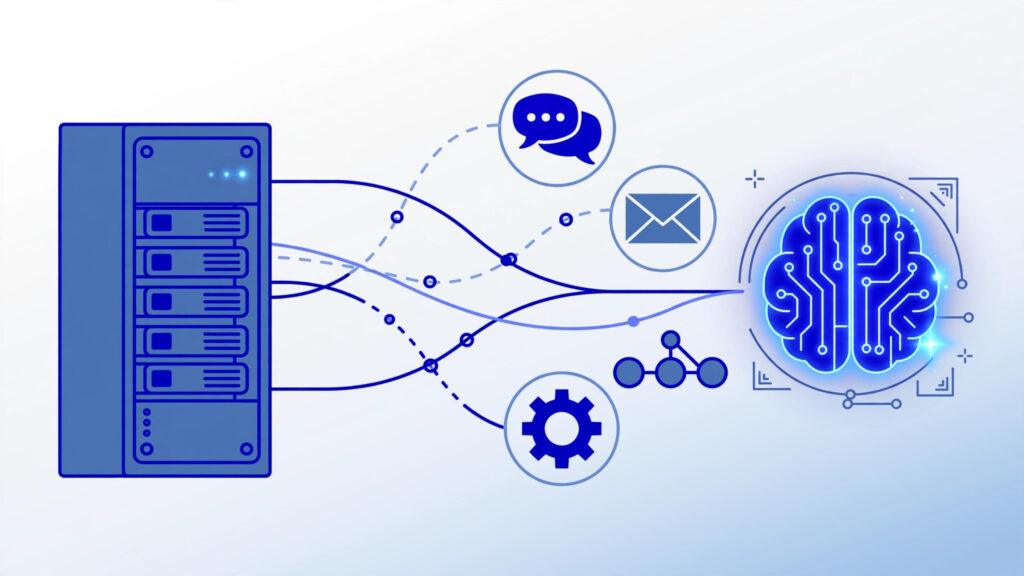
An ai automation server is a server you own (or rent) that runs your automations and AI workflows around the clock — without your laptop being open, without monthly per-task fees, and with control over the workflow host (cloud APIs still receive the data you send to them). Think of it as your private robot employee: it watches for triggers (a new email, a form submission, a schedule), runs AI steps (summarize, classify, generate, decide), and takes actions (send messages, update sheets, post content).
One way to build one is n8n — a source-available workflow automation tool — running on a cheap VPS. This guide walks you through the whole build, from a blank server to your first working AI workflow. If you have never rented a server before, start with our beginner guide on what VPS hosting is, then come back here.
Table of Contents
Why n8n? (And Why Not Zapier or Make)
Self-hosting n8n moves workflow execution onto infrastructure you manage. Your total cost includes the VPS, backups, maintenance and any external API usage. Capacity depends on workload and server resources; compare current provider plans before choosing.
Three more reasons n8n wins for AI automation:
- AI-native: n8n has built-in LangChain nodes, AI agents, vector store integrations, and first-class support for OpenAI, Anthropic, and local models.
- Control over data: workflow execution and stored credentials live on your server. Cloud AI, email and other connected services receive the data your workflows send to them; review each provider’s retention and privacy settings.
- Full control: run custom code, install any npm package, connect to databases directly, and debug with real execution logs.
The trade-off: you manage the server yourself. That is exactly what this guide teaches you.
For the authoritative reference, see n8n’s official documentation.
What You Need: VPS Requirements
n8n is not hungry, but AI workflows can be. Here is what to look for:
- Minimum: 2 vCPU, 2 GB RAM, 40 GB SSD — fine for simple workflows and learning.
- Recommended: 4 vCPU, 8 GB RAM, 80 GB SSD — comfortable for daily AI automations, multiple workflows, and a vector database.
- OS: Ubuntu 22.04 LTS (best community support and Docker compatibility).
- Location: pick a datacenter near you or near the APIs you call, to keep latency low. See our guide on choosing a VPS server location.
You do not need a GPU for most n8n AI workflows — you will call cloud AI APIs (OpenAI, Anthropic) rather than running models locally. If you do want local models, read our comparison of GPU VPS vs regular VPS first.
Budget tip: our guide to getting the cheapest VPS without sacrificing performance applies perfectly here — a $6–$12/month VPS is enough to start.
Not sure what size server your workflows need? See our complete guide on how much VPS power you need for AI automation — most n8n setups run fine on a $10–15/month VPS.
Step 1 — Prepare Your VPS
Log in to your fresh Ubuntu server as root and run the basics: update packages, create a non-root user with sudo, and set up SSH key login. Then harden it — this server will hold API keys, so security is not optional. Follow our VPS security guide for the full checklist (firewall, fail2ban, automatic updates).
At minimum, make sure only ports 22 (SSH), 80 (HTTP), and 443 (HTTPS) are open, and that password login is disabled once your SSH key works. If you are brand new to servers, our new VPS setup checklist walks through every first-boot step.
Step 2 — Install Docker
We will run n8n in Docker — it keeps the installation clean, upgrades painless, and the database bundled. Install Docker Engine and the Compose plugin on Ubuntu:
curl -fsSL https://get.docker.com -o get-docker.sh
sudo sh get-docker.sh
sudo usermod -aG docker $USER
# log out and back in, then verify:
docker --version
docker compose version
The whole install takes about two minutes. Docker lets us define the entire n8n stack — app plus database — in a single file.
Step 3 — Deploy n8n with Docker Compose
Create a project folder and a docker-compose.yml file. We will use PostgreSQL instead of the default SQLite — it is far more reliable for a server that runs 24/7:
mkdir ~/n8n && cd ~/n8n
nano docker-compose.yml
Paste this configuration (replace the passwords and domain with your own):
services:
  postgres:
    image: postgres:16
    restart: always
    environment:
      POSTGRES_USER: n8n
      POSTGRES_PASSWORD: STRONG_PASSWORD_HERE
      POSTGRES_DB: n8n
    volumes:
      - n8n_postgres:/var/lib/postgresql/data

  n8n:
    image: n8nio/n8n:latest
    restart: always
    ports:
      - "127.0.0.1:5678:5678"
    environment:
      - DB_TYPE=postgresdb
      - DB_POSTGRESDB_HOST=postgres
      - DB_POSTGRESDB_USER=n8n
      - DB_POSTGRESDB_PASSWORD=STRONG_PASSWORD_HERE
      - DB_POSTGRESDB_DATABASE=n8n
      - N8N_HOST=n8n.yourdomain.com
      - N8N_PORT=5678
      - N8N_PROTOCOL=https
      - WEBHOOK_URL=https://n8n.yourdomain.com/
    volumes:
      - n8n_data:/home/node/.n8n
    depends_on:
      - postgres

volumes:
  n8n_postgres:
  n8n_data:
Then start everything:
docker compose up -d
docker compose ps   # both containers should show "running"
Notice n8n only listens on 127.0.0.1:5678 — it is not exposed to the internet directly. The next step puts a proper HTTPS front door in front of it.
Step 4 — Add a Reverse Proxy with HTTPS
Point a subdomain like n8n.yourdomain.com at your server’s IP (an A record in your DNS). Then install Nginx and get a free Let’s Encrypt certificate — our Nginx on Ubuntu guide covers the full setup.
Your Nginx site config should proxy to n8n and handle websockets (n8n needs them for the editor):
server {
    listen 443 ssl;
    server_name n8n.yourdomain.com;

    ssl_certificate /etc/letsencrypt/live/n8n.yourdomain.com/fullchain.pem;
    ssl_certificate_key /etc/letsencrypt/live/n8n.yourdomain.com/privkey.pem;

    location / {
        proxy_pass http://127.0.0.1:5678;
        proxy_set_header Host $host;
        proxy_set_header X-Real-IP $remote_addr;
        proxy_set_header Upgrade $http_upgrade;
        proxy_set_header Connection "upgrade";
    }
}
Visit https://n8n.yourdomain.com — you should see the n8n login. Your ai automation server now has a secure, encrypted front door.
Step 5 — Secure n8n Itself
The server is hardened and HTTPS is on — now lock down the app:
- Set up the owner account with a strong password. n8n removed basic-auth support in version 1.0; N8N_BASIC_AUTH_* variables no longer protect the editor. Use built-in user management.
- Create an owner account inside n8n on first login and invite team members with limited roles instead of sharing the admin login.
- Store API keys in n8n credentials, never hard-coded in workflow nodes — credentials are encrypted at rest.
- Enable n8n’s built-in encryption key (
N8N_ENCRYPTION_KEY) so a database leak does not expose your secrets. - Keep n8n updated:
docker compose pull && docker compose up -donce a month, after a backup.
Step 6 — Connect Your AI APIs
In n8n, go to Credentials → New, and add the AI services you will use:
- OpenAI — the most common choice; powers chat, summarization, classification, and embeddings.
- Anthropic (Claude) — excellent for long documents and nuanced writing.
- Google Gemini — generous free tier, good for high-volume simple tasks.
Start with one provider and a small budget cap. Most starter workflows cost pennies per day in API usage — the VPS is the main expense. For cost context, see how much VPS hosting really costs.
Building Your First AI Workflow: The Smart Email Responder

Let us build something real: a workflow that watches your inbox, uses AI to draft replies to common questions, and saves the drafts for your review. It touches every core n8n concept — triggers, AI nodes, and actions.
- Trigger — Gmail Trigger node: set it to watch for new emails matching a filter, e.g.
subject:(quote OR pricing). This fires the workflow only for relevant mail. - AI step — OpenAI node (Analyze): pass the email subject + body with a prompt like: “Classify this email as: pricing question, support request, or other. Reply with one word.” Store the result.
- Branch — IF node: if the classification is “pricing question”, continue; otherwise stop.
- AI step — OpenAI node (Generate): prompt: “You are a helpful sales assistant for a VPS hosting company. Draft a friendly reply to this pricing question. Keep it under 120 words. Do not invent prices — say our plans start at $6/month and link the pricing page.” Pass the original email as context.
- Action — Gmail node (Create Draft): save the AI’s draft as a Gmail draft addressed to the sender. You review and hit send — the AI never emails anyone directly.
This pattern — trigger → AI decision → AI generation → human-reviewed action — is the template for 80% of business AI automations. Keep a human in the loop for anything customer-facing until you fully trust the workflow. If you also run AI agents on servers, you will recognize the same thinking in our best VPS for AI agents guide.
Going Further: Memory, RAG, and Vector Databases
Once the basics click, the next level is giving your AI workflows memory — the ability to remember past conversations and consult your own documents.
- Conversation memory: n8n’s AI Agent node supports window buffer memory, so a support chatbot remembers what the user said three messages ago. Store it in Postgres (already running) for persistence.
- RAG (Retrieval-Augmented Generation): the technique behind “chat with your docs”. You split your knowledge base (FAQs, manuals, policies) into chunks, embed them, store them in a vector database, and the AI retrieves the relevant chunks before answering — dramatically reducing hallucinations.
- Vector database options on your VPS: Qdrant and pgvector (a Postgres extension — zero new services to run) are the simplest self-hosted choices. n8n has native nodes for both.
A practical RAG starter project: index your 20 most common support articles into Qdrant, then build a Slack bot that answers team questions from your own docs. Total extra cost: $0 — it all runs on the same VPS.
Scheduling, Webhooks, and Triggers
An automation server earns its keep by reacting to events. n8n gives you four trigger families:
- Schedule Trigger: run workflows on a cron — daily reports, weekly digests, hourly checks. Your server runs 24/7, so 3 AM jobs just work.
- Webhook Trigger: n8n generates a URL; any service can POST to it. Perfect for form submissions, payment events, and GitHub hooks.
- App triggers: native triggers for Gmail, Telegram, Slack, RSS, and 400+ other apps.
- Manual + chat triggers: for testing and for building internal AI chatbots your team can talk to.
Pro tip: use the Execute Workflow trigger to split big automations into reusable sub-workflows — one “send Telegram alert” workflow called from ten others beats ten copies of the same nodes.
Backups and Updates: Don’t Skip This
Your automations will become business-critical faster than you expect. Protect them:
- Database backups: schedule a nightly
pg_dumpof the n8n Postgres database to object storage or a second VPS. Workflows, credentials, and execution history all live there. - Export workflows as JSON weekly (n8n → Workflows → Download) and commit them to a private Git repo — free version control and an audit trail.
- Update monthly:
docker compose pull && docker compose up -d. Read n8n’s release notes first; major versions occasionally change node behavior. - Monitor disk space: execution history grows forever. In n8n settings, set data pruning (e.g. keep 30 days) so a busy server never fills its disk.
Running Costs: Self-Hosted vs n8n Cloud vs Zapier
| Option | Monthly cost | Executions | Data privacy |
|---|---|---|---|
| n8n on your VPS | $6–$12 (VPS) + AI API usage | Limited by server resources and applicable license | Self-managed storage; external APIs receive submitted data |
| n8n Cloud (Starter) | ~$20–$50 | Limited by plan | Good — EU/US cloud |
| Zapier | $20–$200+ | Limited by tasks | Vendor-held |
| Make | $9–$100+ | Limited by operations | Vendor-held |
Self-hosting can be economical, but savings depend on execution volume, workload, maintenance time and current plans. Higher concurrency can require larger servers; API usage, backups and storage add to the total.
Troubleshooting Common Problems
n8n won’t start after a reboot
You probably forgot restart: always in the compose file — or Docker itself is not set to start on boot. Enable it: sudo systemctl enable docker.
Webhooks return 404 or don’t fire
Almost always a WEBHOOK_URL mismatch — it must be the exact public HTTPS URL (we set it in the compose file). Also confirm the workflow is activated (toggle in the top right); inactive workflows ignore webhooks.
“Out of memory” crashes
AI nodes with large payloads can spike RAM. Upgrade to 4–8 GB RAM, and in n8n’s settings limit concurrent executions. Check docker stats to see which container is hungry.
Postgres connection errors
Usually the database container is still starting when n8n tries to connect. depends_on orders startup but does not wait for readiness — a restart of the n8n container after 30 seconds fixes it.
Frequently Asked Questions
Do I need coding skills to use n8n?
No. Most workflows are built by dragging nodes and filling in fields. Knowing a little JavaScript helps for the Code node, but hundreds of useful automations need zero code.
Can I run n8n on a Windows VPS / RDP server?
Use a supported Linux VPS for the Linux containers shown here. This guide does not provide a Windows Server deployment; do not assume Docker Desktop is supported on Windows Server.
Is self-hosted n8n really free?
The Community edition is available under n8n’s source-available, fair-code licensing terms; check the license for your intended use. You pay only for the VPS and whatever AI APIs you call. There is also a paid self-hosted tier if you need SSO and advanced permissions.
How many workflows can a small VPS handle?
Workflow count alone does not determine capacity. Measure concurrent executions, payload size, node behavior, memory and database activity with your own workload before sizing a production server.
What happens if my VPS goes down?
Scheduled workflows pause until it is back; webhooks sent during downtime are lost unless the sender retries. That is why backups and a reliable host matter — pick a provider with a strong uptime record.
Conclusion: Your AI Automation Server in One Evening
Building an AI automation server with n8n gives you control over deployment and operations. Budget for server resources, maintenance, backups and API usage, and review the privacy implications of each connected service.
Start small — deploy the stack, build the email responder, watch it work. Then add memory, RAG, and scheduled reports as your confidence grows. Every workflow you move off Zapier-style per-task billing is money back in your pocket, every month, forever.
Ready to build? Grab a VPS, follow the steps above, and your private automation server will be running before dinner.
7 Real-World AI Workflow Ideas to Steal
Need inspiration? These are proven automations people actually run on self-hosted n8n servers:
- AI content repurposer: when you publish a blog post (RSS trigger), AI generates a Twitter thread, a LinkedIn post, and a newsletter blurb — saved as drafts for review. One publish becomes four assets.
- Lead qualifier: new form submission → AI scores the lead against your ideal customer profile → hot leads get a personal Slack alert, cold ones get a polite auto-reply.
- Meeting notes to tasks: upload a call recording → Whisper transcribes → GPT extracts action items with owners and deadlines → creates tasks in Notion or Todoist automatically.
- Competitor watcher: daily schedule → scrape competitor pricing pages → AI summarizes what changed → Telegram digest every morning. Market intelligence on autopilot.
- Support ticket triage: new ticket → AI classifies urgency and topic → routes to the right person, drafts a first response, and escalates angry customers instantly.
- Invoice chaser: weekly schedule → check unpaid invoices in your accounting tool → AI writes polite, personalized follow-ups → sends them (or drafts them for approval).
- Personal research assistant: send any topic to a Telegram bot → AI searches the web, summarizes the top sources, and replies with a briefing. Your own private Perplexity.
Each of these replaces hours of manual work per week — and on your own server, each costs fractions of a cent in API fees.
Scaling Up: When One VPS Isn’t Enough
Most people never outgrow a single VPS. But if you do — thousands of executions per hour, or teams sharing the server — here is the path:
- Vertical first: resize to 8 vCPU / 16 GB RAM. Five minutes of downtime, zero architecture changes.
- Split the workers: n8n supports queue mode with Redis — one main instance plus dedicated worker containers that chew through executions in parallel.
- Separate the database: move Postgres to a managed database so app and data scale independently.
- Add monitoring: Uptime Kuma (also self-hosted, also free) watches your n8n URL and alerts you on Telegram if it ever goes down.
Do not build for scale on day one. Start with the simple Docker Compose setup in this guide — it handles far more than most people expect.
n8n Alternatives Worth Knowing
n8n is our pick, but the self-hosted automation world has options: Activepieces (simpler UI, also open-source), Windmill (developer-focused, great for code-heavy flows), and Huginn (the old-school veteran). All run fine on the same VPS setup. That said, choose among them based on the integrations, license, maintenance requirements and workflows you actually need.
Migrating from Zapier or Make to Self-Hosted n8n
Already paying for Zapier or Make? Migration is straightforward and usually pays for itself in the first month:
- Audit your Zaps: export a list of active automations and rank them by monthly task usage — migrate the hungriest ones first for maximum savings.
- Rebuild the top 3: most Zapier Zaps map 1:1 to n8n nodes (triggers, filters, and app actions all have equivalents). Budget 20–30 minutes per Zap.
- Run in parallel for a week: keep the old Zap active while the n8n version runs, and compare outputs. n8n’s execution log makes side-by-side debugging easy.
- Switch off and cancel: once outputs match for a full week, disable the Zap. Repeat for the next batch.
A typical 5,000-task/month Zapier plan ($70+) becomes a $6 VPS. The migration weekend is the highest-ROI weekend project in automation.