
BuyRDPs.

Ismail

Ismail writes about VPS, RDP and self-hosted AI at BuyRDPs.

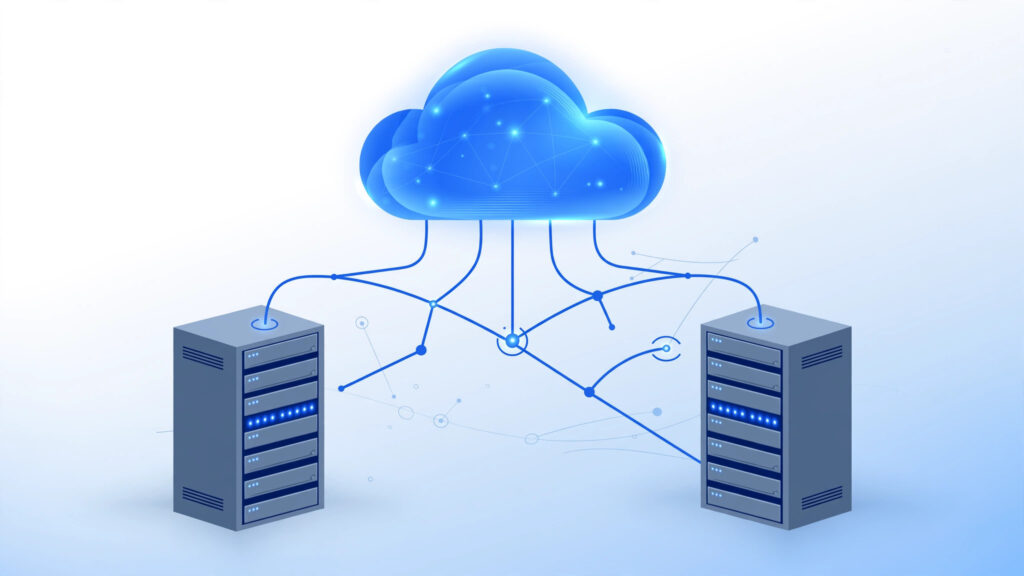
What is VPS hosting – cloud servers illustration

What Is VPS Hosting? A Beginner’s Guide (2026)

VPS hosting is a type of web hosting where a physical server is divided into multiple isolated virtual servers, each with its own dedicated CPU, RAM, and storage. It sits between shared hosting and dedicated servers: more powerful and flexible than shared hosting, but far more affordable than renting an entire physical server. If your website has outgrown shared hosting, VPS hosting is usually the natural next step. Disclosure: This post contains affiliate links. If you buy through them, we may earn a commission at no extra cost to you. How VPS Hosting Works To understand VPS hosting, picture a large apartment building. A dedicated server is like owning the whole building. Shared hosting is like renting a single room where you share the kitchen and bathroom with dozens of strangers. A Virtual Private Server (VPS) is like owning your own apartment: you share the building (the physical server) with others, but your apartment has its own locked door, its own kitchen, and nobody else can touch your stuff. Technically, this is made possible by a hypervisor — software that splits one powerful physical machine into several virtual machines. Each virtual machine runs its own operating system and gets a guaranteed slice of resources: Unlike shared hosting, where a traffic spike on a neighbor’s site can slow yours down, a VPS gives you isolated resources. What you pay for is yours. VPS Hosting vs Other Hosting Types Here is how VPS hosting compares to the alternatives at a glance: Feature Shared Hosting VPS Hosting Dedicated Server Resources Shared with many users Guaranteed, isolated Entire server is yours Typical cost $2–$10/month $4–$40/month $80+/month Root/admin access No Yes Yes Scalability Limited Easy upgrades Manual hardware upgrades Technical skill needed Minimal Basic to moderate Advanced For a deeper comparison, read our guide to compare VPS with shared hosting and dedicated servers and pick the right hosting with confidence. The Main Advantages of VPS Hosting 1. Guaranteed resources Your CPU, RAM, and storage are reserved for you. A noisy neighbor on the same physical machine cannot steal your performance the way they can on shared hosting. 2. Full root access You get administrator (root) access to your server. Install any software, change server settings, run custom applications — things shared hosting simply does not allow. 3. Better security Isolation means another customer’s hacked website does not directly expose yours. You can also configure your own firewall rules and security policies. 4. Easy scalability Most providers let you upgrade RAM, CPU, or storage in a few clicks, often without downtime. Start small and grow as your traffic grows. 5. Great value for money A basic VPS often costs only slightly more than premium shared hosting, yet delivers far more control and performance. The Downsides to Know About VPS hosting is not perfect for everyone: This is why managed VPS hosting exists — the provider handles the technical maintenance for you (more on that in our managed vs unmanaged VPS guide). Who Should Use VPS Hosting? VPS hosting is a good fit if you: You probably do not need a VPS yet if you run a small personal blog with a few hundred visitors a month — good shared hosting or managed WordPress hosting is cheaper and simpler. What Can You Do With a VPS? A VPS is remarkably versatile — from hosting websites to running a remote desktop you can access from anywhere. Common uses include: How to Choose Your First VPS When shopping for your first VPS, compare these key specs: Prices change often, so always check the provider’s website for current plans — but as of 2026, entry-level VPS plans from reputable providers typically start around $4–$6 per month. For a full breakdown of price tiers and hidden fees, see our guide on how much VPS hosting costs in 2026. When you are comparing providers, it also helps to know how we review VPS providers at BuyRDPs — our transparent methodology for testing and scoring every host. Frequently Asked Questions Is VPS hosting good for beginners? Yes, especially managed VPS hosting, where the provider handles updates and security. Unmanaged VPS requires basic Linux or Windows Server knowledge, but there are countless tutorials to learn from. Do I get a dedicated IP with VPS hosting? In most cases, yes. The majority of VPS plans include at least one dedicated IPv4 address, which is useful for email servers, SSL, and remote access. Can I upgrade my VPS later? Usually yes. Most providers allow one-click upgrades to add RAM, CPU, or storage, often without taking your server offline. Is VPS faster than shared hosting? Generally yes, because your resources are guaranteed and not shared with hundreds of other websites. The actual speed also depends on the provider’s hardware, your server location, and how well your site is optimized.

What Is VPS Hosting? A Beginner’s Guide (2026) Read More »
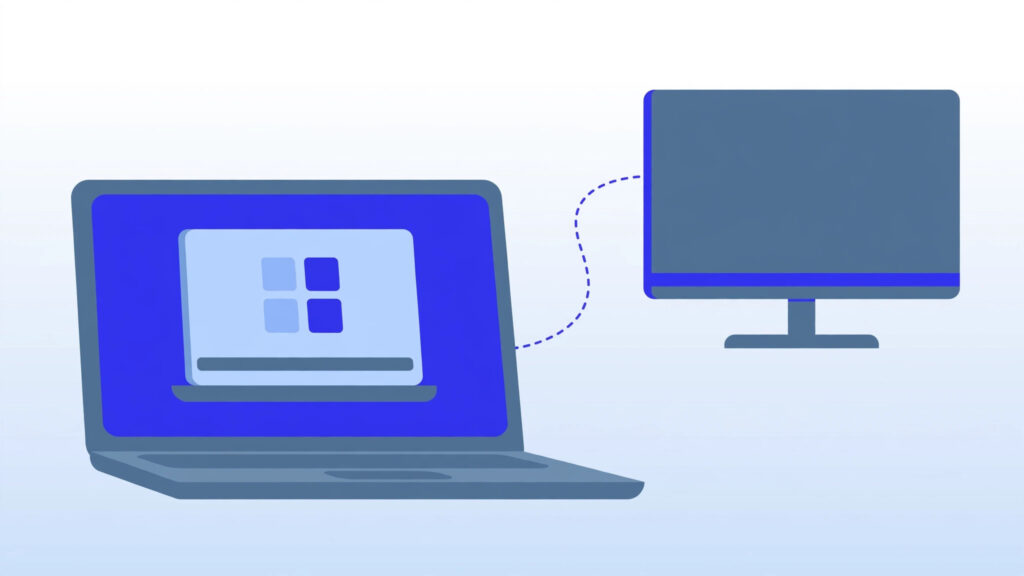
What is RDP – remote desktop protocol illustration

What Is RDP? Remote Desktop Protocol Explained for Beginners

What is RDP? In the simplest terms, it is a technology that lets you see and control another computer from your own screen, as if you were sitting right in front of it. RDP stands for Remote Desktop Protocol, a system created by Microsoft that carries a computer’s display to your device and carries your keyboard and mouse input back. Picture this: your office computer is sitting on your desk at work, but you are on your couch at home. With RDP, you open a window on your laptop, type in an address, sign in — and suddenly you are looking at your office computer’s desktop. You can open its files, run its programs, and do everything you could do if you were sitting in that office chair. That is the everyday magic of RDP. In this beginner-friendly guide, you will learn what RDP is in plain language, how it works behind the scenes, what people actually use it for, how it compares to alternatives like VNC and TeamViewer, how to keep it secure, and how to set up your very first connection. What Is RDP? Explained in Plain Language Let us break down the name first. RDP stands for Remote Desktop Protocol. A “protocol” is simply an agreed set of rules that two computers follow when they talk to each other — like a shared language. So RDP is Microsoft’s rulebook for letting one computer display its screen on another computer and accept input from it. Every RDP setup has two sides: Windows has both sides built in: every modern Windows PC includes the Remote Desktop Connection app, and Windows 10/11 Pro and Windows Server editions can act as hosts. Microsoft also publishes free Remote Desktop apps for macOS, Android, and iOS, so you can reach a Windows computer from almost any device you own. One thing that confuses beginners: in the hosting world, people often say “RDP” when they actually mean a remote Windows server — usually a VPS — that you log into with the protocol. Both meanings point to the same idea: a complete Windows desktop you can reach from anywhere with an internet connection. How Does RDP Work? A Simple Step-by-Step Think of RDP as a very clever video call between two computers — except instead of showing a face, one side shows its entire desktop. Here is what happens when you connect, in plain language: By default, RDP listens on TCP port 3389. You will see that number a lot in RDP guides and firewall settings, so it is worth remembering. What Can You Do With RDP? Common Uses RDP quietly powers far more of the internet than most people realize. Here are the most common ways people use it: RDP vs VNC vs TeamViewer: A Quick Comparison RDP is not the only way to reach a computer remotely. The two alternatives you will hear about most are VNC, an open, cross-platform protocol that works on almost any operating system but tends to feel slower and less polished on Windows, and tools like TeamViewer or AnyDesk, which are wonderfully easy — no firewall configuration needed — but charge for commercial use. RDP’s sweet spot is Windows-to-Windows connections. It is already installed, it costs nothing extra, it is fast because it is deeply integrated with Windows, and it plugs straight into Windows user accounts and security. If you want the full, detailed breakdown, read our RDP vs VNC vs TeamViewer comparison. Is RDP Secure? The Basics You Must Know Here is the honest answer: the RDP protocol itself uses strong encryption, but its real-world safety depends almost entirely on how it is set up. RDP has a rough reputation for one reason — countless servers sit on the open internet with RDP exposed and weak passwords, and automated bots scan for open port 3389 around the clock, guessing username and password combinations by the thousands. The good news: a handful of basic habits neutralizes nearly all of that risk: Want to go deeper? Read our full guide on whether RDP is safe, and if you run a server, our VPS security checklist covers the wider hardening picture. How to Get Started With RDP Getting your first RDP connection running is easier than most beginners expect. Here is what you need: Step 1 — Enable Remote Desktop on the host. On the remote Windows PC, open Settings, go to System, then Remote Desktop, and turn the toggle on. Note the PC name shown there — you will need it in a moment. Step 2 — Connect from your device. On your own computer, open the Remote Desktop Connection app (just search “Remote Desktop” in the Start menu), type the host’s address, hit Connect, and sign in with your credentials. That is it — the remote desktop appears in a window, ready to use. For the full walkthrough with screenshots-level detail, see our guides on enabling Remote Desktop on Windows 10 and 11 and using the Remote Desktop Connection app. RDP Not Connecting? Quick Troubleshooting Pointers Almost every RDP problem comes down to a short list of usual suspects. Run through these before anything else: If none of that fixes it, our RDP connection problems guide walks through the deeper fixes step by step. Frequently Asked Questions Is RDP free to use? The RDP client apps and the protocol support built into Windows cost nothing extra. What is not free is the Windows license on the host computer — and if you rent a Windows VPS, your hosting provider typically passes a Windows licensing fee on to you. The remote-access capability itself has no per-connection charge. What port does RDP use? RDP uses TCP port 3389 by default. You can change it in the Windows Registry, which many administrators do to reduce the noise from automated port scanners — it is a useful layer, not a complete defense on its own. Can I use RDP from a Mac, phone, or tablet? Yes. Microsoft publishes free Remote

What Is RDP? Remote Desktop Protocol Explained for Beginners Read More »