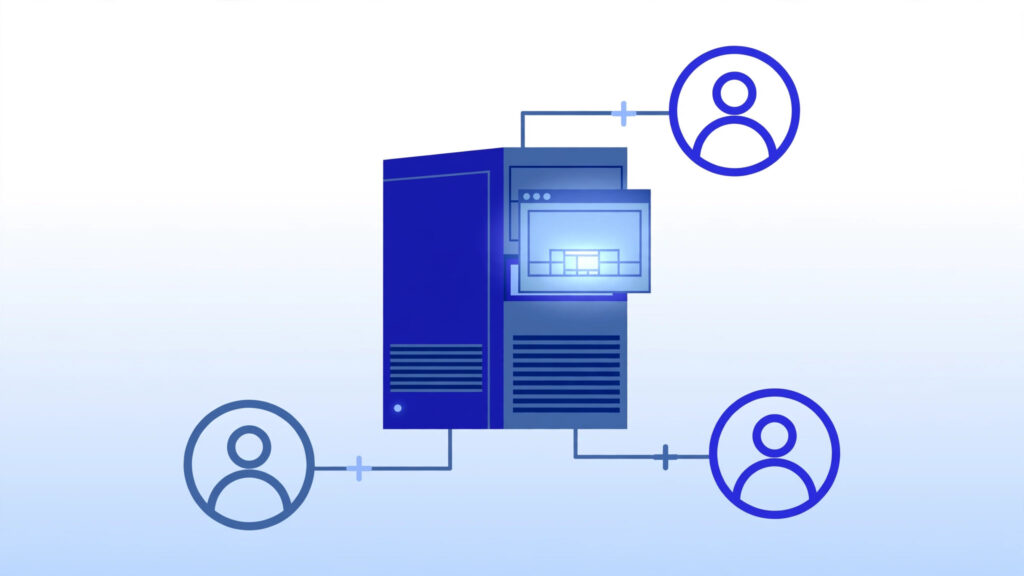

How to Run AI Models on a VPS: Self-Hosting Guide (2026)
Why Self-Host AI Models on a VPS? Running AI models on your own server — instead of paying OpenAI, Anthropic, or Google per token — is one of the smartest moves you can make in 2026. When you run ai models on a vps, you get predictable costs, complete privacy, zero rate limits, and the freedom to fine-tune models for your exact needs. The open-source models available today (Llama, Mistral, Qwen, DeepSeek) are shockingly capable — good enough for chatbots, summarization, coding help, data extraction, and RAG systems. And they run beautifully on a rented VPS that costs less than a dinner out. This guide covers everything: hardware requirements, the best tools, step-by-step setup, and real costs. If you are new to servers, read our VPS hosting beginner guide first. If you specifically want AI video or image generation, see our GPU VPS vs regular VPS comparison — this guide focuses on language models, which have very different requirements. What You Need: Hardware Requirements Language models live in RAM (or VRAM). The rule of thumb: you need roughly 1 GB of memory per 1 billion parameters for a quantized model. Here is what that means in practice: CPU choice matters less than RAM for inference — any modern CPU works. What matters is memory bandwidth and quantity. For most people, an 8B model on a mid-range VPS is the sweet spot: fast enough, smart enough, cheap enough. Need help picking server specs? Our guide to getting the cheapest VPS without sacrificing performance walks through the shopping process. For a full breakdown of exact requirements by website type, see our guide to CPU, RAM and storage specs for AI websitess. Model Formats Explained: GGUF, GPTQ, AWQ You will see these acronyms everywhere — here is what they mean: Bottom line: CPU VPS → GGUF models. GPU VPS → AWQ/GPTQ models. Download models from Hugging Face — every popular model has quantized versions uploaded by the community. Option 1: Ollama — The Easiest Way to Start Ollama is the simplest path to running models on a VPS. One install command, one command to download a model, one command to chat — and it exposes an OpenAI-compatible API for your apps. Install on Ubuntu: Download and run your first model (Llama 3.1 8B, a great all-rounder): That is it — you are running a capable AI on your own server. Ollama automatically picks the right quantization, uses GPU if one exists, and falls back to CPU otherwise. For programmatic access, it serves an API on localhost:11434: Ollama is perfect for: personal chatbots, API backends for your apps, and experimentation. When you outgrow it, the next options give you more control. Option 2: llama.cpp — Maximum Control on CPU llama.cpp is the engine underneath most CPU inference. Using it directly gives you fine-grained control over threading, memory mapping, and performance tuning: Key flags worth knowing: -t (thread count — match your vCPU count), -c (context size), and –mlock (lock the model in RAM so it never swaps to disk). llama.cpp also ships llama-server, an OpenAI-compatible HTTP server — the same API shape as Ollama, but with more tuning knobs. Choose llama.cpp when you need maximum performance on limited hardware or want to understand exactly what is happening under the hood. Option 3: vLLM and Text Generation WebUI — For GPU Servers If your VPS has a GPU, you can serve models far faster with GPU-optimized software: On a 24 GB VRAM GPU (RTX 3090/4090), vLLM can serve a 70B AWQ model to multiple users at once — something no CPU server can touch. For the hardware side, revisit our GPU VPS guide. If a single GPU is not enough VRAM for your model — for example, serving a 70B model at full precision or several large models at once — see our guide to the Hetzner GEX430 GPU server. If your goal is image generation rather than language models, follow our complete guide to self-host an AI image generator on a GPU server. Exposing an OpenAI-Compatible API The killer feature of Ollama, llama.cpp server, and vLLM: they all speak the OpenAI API format. That means any app, n8n workflow, or script written for OpenAI works with your self-hosted model by changing one URL: This is how you plug self-hosted AI into real projects: point your n8n automation server at your VPS model endpoint, and your workflows run on free, private AI instead of paid APIs. For a deeper walkthrough — securing the endpoint with API keys, HTTPS, and rate limits — see our guide on how to host your own AI API on a VPS. Choosing the Right Model for Your VPS Not all models are equal — and bigger is not always better for your use case. Here are the proven picks in 2026: Start with Llama 3.1 8B. Only move up when you can point to a specific task where it falls short — most people never need to. Quantization: The Setting That Decides Everything Quantization shrinks a model by storing its weights in fewer bits. The practical impact: A Llama 3.1 8B at Q4_K_M needs about 5 GB of RAM — it fits comfortably on an 8 GB VPS with room for the OS. The same model at full 16-bit precision needs 16+ GB. Quantization is what makes self-hosting affordable. Performance Tuning: Getting More Speed Realistic CPU speeds: an 8B Q4 model on 4 vCPUs generates ~10–20 tokens/second — fine for chat and automation. Batch jobs (summarizing 100 documents overnight) do not care about per-token speed at all. Securing Your AI Server Your model endpoint is valuable — an exposed one gets abused for spam and costs you CPU. Lock it down: Costs: Self-Hosting vs Pay-Per-Token APIs Approach Monthly cost Best for 8B model on $12 VPS $12 flat Steady daily use, chatbots, automation 70B model on GPU VPS $150–$300 flat High-quality needs, teams OpenAI API (GPT-4o-mini) $0.15–$0.60 per 1M tokens Bursty, unpredictable usage OpenAI API (GPT-4o) $2.50–$10 per 1M
How to Run AI Models on a VPS: Self-Hosting Guide (2026) Read More »