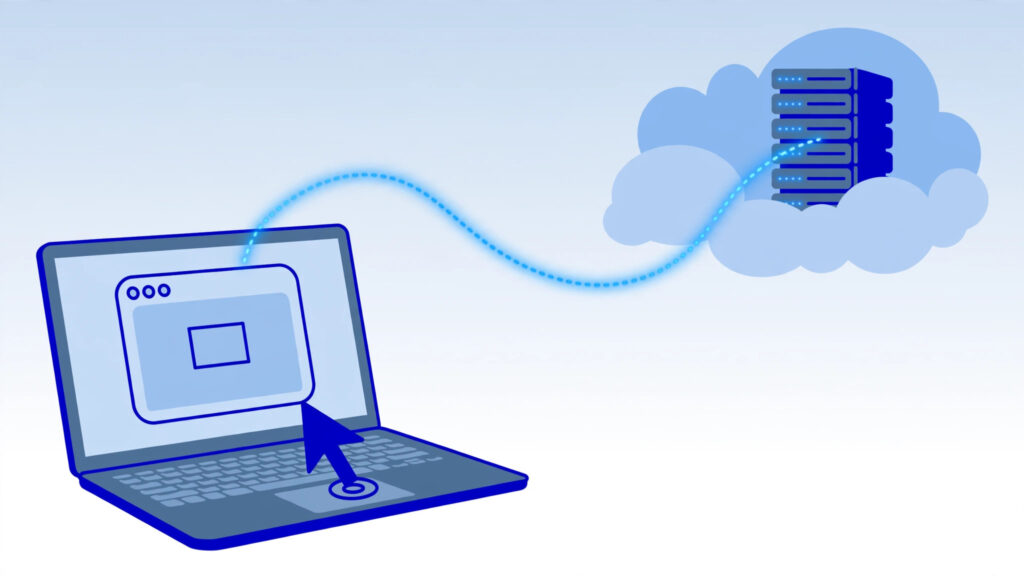
Connecting to a Windows VPS is nothing like connecting to a Linux server — there is no terminal wizardry required. You use Remote Desktop Protocol (RDP), which gives you the full Windows graphical desktop in a window on your own computer, exactly as if you were sitting in front of the server.
This tutorial walks you through how to connect Windows VPS remote desktop, step by step, on Windows, Mac, Android, and iPhone — plus how to fix the most common connection errors.
Table of Contents
What You Need Before You Start
Your hosting provider should have emailed you (or shown in the control panel) the following details after your Windows VPS was provisioned:
- IP address of the server (for example,
203.0.113.10— your real IP will differ) - Username — usually
Administratoron Windows Server - Password — the administrator password you set or received
- RDP port —
3389by default (you only need this if your provider changed it)
You will also need a reasonably stable internet connection. RDP is efficient, but a very slow or unstable connection will make the remote desktop feel laggy.
Note: On most hosted Windows VPS plans, Remote Desktop is already enabled by the provider. If you installed Windows yourself, you may need to enable it first under Settings > System > Remote Desktop. See our guide on how to enable Remote Desktop on Windows 10 and 11.
How to Connect Windows VPS Remote Desktop From Windows
Windows includes a built-in Remote Desktop client, so you do not need to install anything.
Step 1: Open Remote Desktop Connection
Press Windows key + R on your keyboard, type mstsc, and press Enter. The Remote Desktop Connection window will open. (You can also find it by searching “Remote Desktop Connection” in the Start menu.)
Step 2: Enter the server’s IP address
In the Computer field, type your VPS IP address (for example, 203.0.113.10). If your provider uses a custom RDP port, add it after a colon, like 203.0.113.10:3390.
Click Show Options if you want to adjust settings such as screen size or save your credentials — optional, but handy.
Step 3: Click Connect and enter your credentials
Click Connect. Windows will prompt you for credentials:
- Username:
Administrator(or the username your provider gave you) - Password: your administrator password
Check Remember me if you are on your own private computer and want to skip this step next time. Never check it on a shared or public computer.
Step 4: Accept the certificate warning
The first time you connect, you will see a warning saying the identity of the remote computer cannot be verified. This is normal — most VPS servers use a self-signed certificate. Check “Don’t ask me again for connections to this computer” and click Yes to continue.
Step 5: You are in
After a few seconds, the full Windows desktop of your VPS will appear. You can now install software, change settings, and manage the server exactly as if it were a local PC. When you are done, simply close the Remote Desktop window (this disconnects you but leaves the server running) or use Start > Power to restart or shut down. Traders commonly use this RDP access to manage a forex trading VPS.
How to Connect From a Mac
Microsoft offers a free official client for macOS:
- Open the App Store and install “Windows App” (the successor to Microsoft Remote Desktop).
- Open the app and click the + button, then choose Add PC.
- Under PC name, enter your VPS IP address.
- Under User account, click the dropdown, choose Add User Account, and enter your
Administratorusername and password. - Double-click the saved PC to connect. Accept the certificate warning on first connection, just like on Windows.
How to Connect From Android or iPhone
- Install “Windows App” (Microsoft’s remote desktop app) from the Google Play Store or Apple App Store.
- Tap the + icon and select Add PC.
- Enter your VPS IP address as the PC name.
- Add your user account with the Administrator username and password.
- Tap the saved connection to connect.
Tip: on a phone screen, switch to landscape orientation and use the app’s touch mode — it makes navigating a Windows desktop far less painful.
First Things to Do After Connecting
Once you are logged in for the first time, take a few minutes on these basics:
- Change the administrator password to something strong and unique (search “Computer Management” > Local Users and Groups, or use
Ctrl + Alt + Endand choose Change a password). - Run Windows Update and install all pending updates.
- Check the time zone is set correctly for your needs.
- Enable the firewall if it is not already on, and make sure only the ports you need are open.
Troubleshooting Common Connection Problems
“Remote Desktop can’t connect to the remote computer”
This is the most common error, and it usually means one of three things:
- The server is offline or still provisioning. New VPS orders can take 10–30 minutes to become reachable. Check your provider’s control panel to confirm the server status is “Running.”
- RDP is not enabled or the firewall is blocking it. On provider-managed Windows VPS plans this is rare, but if you configured the server yourself, verify Remote Desktop is enabled and that TCP port 3389 is allowed through the Windows Firewall.
- You are using the wrong IP or port. Double-check the IP address in your provider’s panel, including any custom port.
“The logon attempt failed” (wrong credentials)
Usernames on Windows are case-insensitive, but passwords are case-sensitive. Retype the password carefully, watching for caps lock. If you lost the password, most providers let you reset it from the control panel — this usually requires a reboot.
Certificate warning on every connection
If you did not check “Don’t ask me again,” you will see the warning each time. It is harmless on a server you control. If it bothers you, you can install a proper SSL certificate on the server, but for most VPS use cases the self-signed certificate is fine.
Black screen or frequent disconnects
This is almost always a network issue on your side or the provider’s. Try lowering the connection quality: in the Remote Desktop client, go to Show Options > Experience and choose a slower connection speed, or reduce the display resolution. If the problem persists, contact your provider’s support.
“An authentication error has occurred” (CredSSP / NLA)
This can happen when the client and server have mismatched security updates, particularly with Network Level Authentication. First, make sure your local computer’s Windows is fully updated. If the error persists after updating both sides, your provider’s support can help — do not disable NLA as a “fix,” since it weakens security.
A Quick Security Note
RDP exposed directly to the internet attracts automated login attempts. Protect yourself:
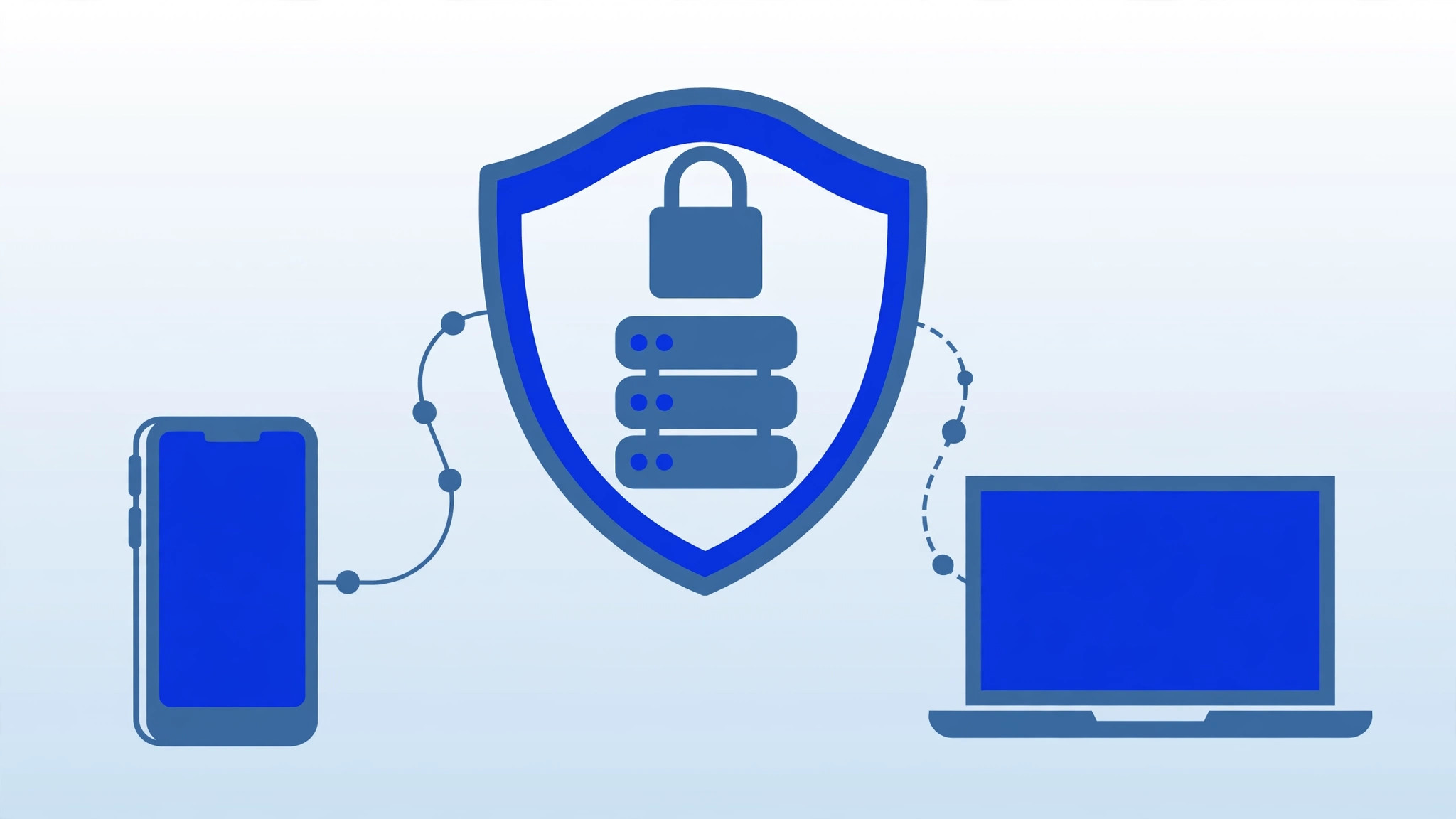
- Use a long, unique administrator password (a password manager helps).
- Ask your provider about restricting RDP access to your IP address, or use a VPN to reach the server.
- Keep Windows updated — most RDP vulnerabilities are patched quickly.
- Consider changing the default RDP port to reduce automated scanning noise (this is obscurity, not security, but it cuts down log spam).
For a deeper dive, see our guide on securing your VPS.
Conclusion
Connecting to a Windows VPS with Remote Desktop takes less than a minute once you have your login details: open mstsc, enter the IP, sign in, accept the certificate, and you are looking at your server’s desktop. The same credentials work from Mac and mobile apps, so you can manage your server from anywhere. If a connection fails, work through the troubleshooting steps above before assuming something is seriously wrong — nine times out of ten, it is a typo, a provisioning delay, or a firewall rule.
Frequently Asked Questions
What is the default username and password for a Windows VPS?
There is no universal default. Providers typically set the username to Administrator and either let you choose the password during ordering or generate one shown in the control panel. Check your provider’s welcome email or dashboard.
Is Remote Desktop free?
The RDP client is built into Windows and Microsoft’s Mac/mobile apps are free. On the server side, Windows Server licensing is handled by your hosting provider and included in the VPS price. Note that Windows VPS plans usually cost more than Linux ones because of licensing.
Can multiple people use Remote Desktop on a VPS at the same time?
By default, Windows Server allows two simultaneous administrative RDP sessions. Allowing more concurrent users requires Remote Desktop Services (RDS) licensing. Check with your provider if you need multi-user access.
Is it safe to use RDP over the internet?
RDP itself encrypts the connection, but exposing port 3389 to the entire internet invites brute-force attacks. Use a strong password, keep the server patched, and ideally restrict access via firewall rules or a VPN for meaningful protection.